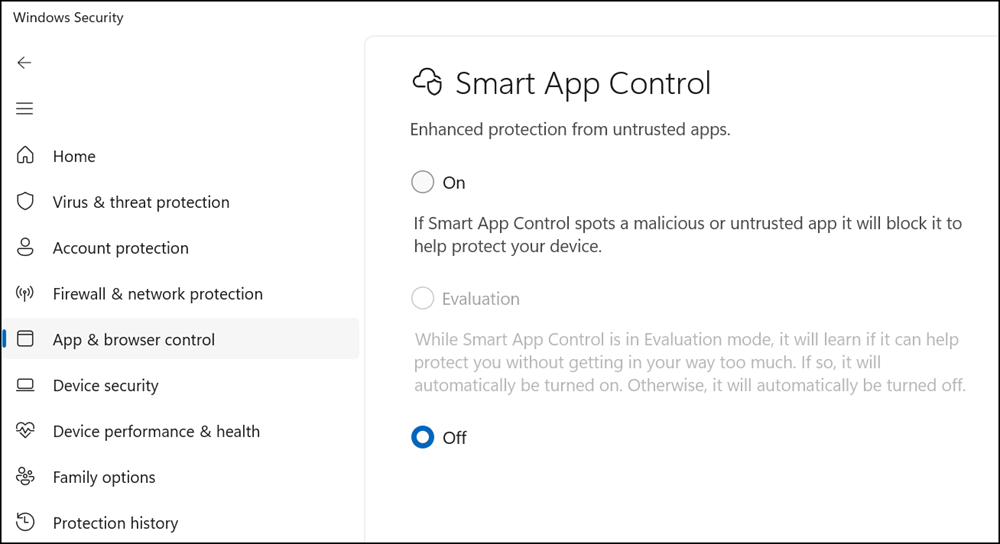
With the cumulative update KB5083769 from 14 April, Microsoft updated the option to enable Smart App Control without requiring a Windows 11 reinstall.
Smart App Control is a built-in Windows 11 security feature that helps protect devices by checking whether an app is safe before allowing it to run. It uses Microsoft’s cloud-based intelligence services to assess apps, and if an app cannot be verified as safe or lacks a trusted digital signature, it will be automatically blocked. The feature runs quietly in the background and is designed to prevent harmful or untrusted software from reaching the desktop.
Until now, Smart App Control came with a significant limitation: Once the setting was switched off, it was not possible to turn it back on without completely reinstalling or resetting Windows 11. This created difficulties for users who needed to temporarily disable the feature to install a trusted application that was being incorrectly blocked, as doing so meant permanently giving up the protection unless they were willing to wipe their device and start again from scratch.
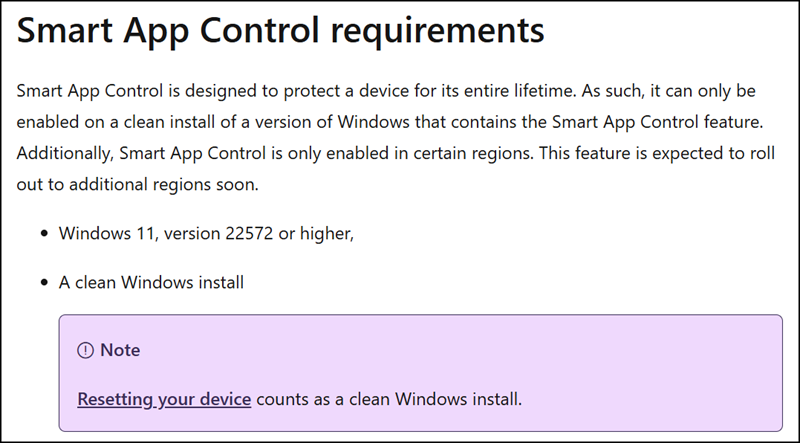
The limitation has now been removed with the April 2026 cumulative update.
Users can now turn Smart App Control on or off at any time directly from Windows Security settings, without needing to reinstall the operating system. For example, they can now temporarily disable the feature if a trusted application is blocked, complete the installation, and then re-enable it straight away.
When should I disable Smart App Control?
You are able to disable Smart App Control in the Windows Security App settings. You may need to disable if:
- You’re installing, updating, or uninstalling apps that rely on Windows Installer Transform (MST) files. MST files can’t currently be digitally signed, and if Smart App Control is unable to obtain a confident cloud reputation verdict for the files, it may result in a block. In these cases, Smart App Control may need to be temporarily disabled to complete the process.
You can turn Smart App Control back on after the installation is complete. Recent Windows updates allow Smart App Control to be re‑enabled without requiring a clean installation.
Smart App Control FAQs
To open the settings, open Windows Security, then App and Browser Control, and select Smart App Control settings.