Recently, I posted about the retirement of SharePoint One-time passcode (SharePoint OTP).
As mentioned, Microsoft will no longer use the SharePoint tenant setting EnableAzureADB2BIntegration starting in May 2026. If you still use EnableAzureADB2BIntegration set to False along with strict external collaboration settings for B2B in Microsoft Entra External ID, this post is for you.

This change will affect your organization if you have strict external collaboration settings for B2B in Microsoft Entra External ID. It affects the two settings shown in my screenshot below.
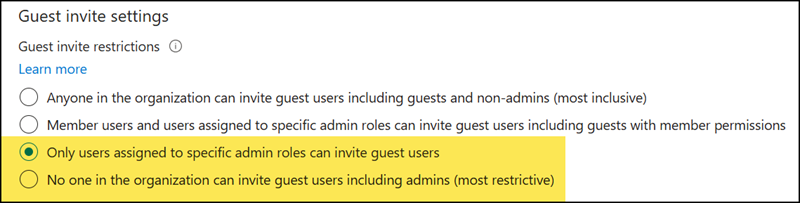
If you currently use EnableAzureADB2BIntegration set to False, these Entra settings have no impact on your SharePoint or OneDrive users, as SharePoint does not create a guest account in Entra.
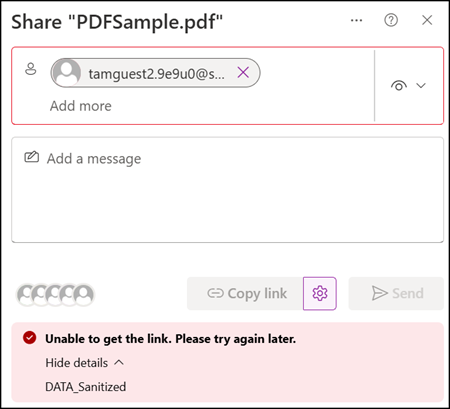
Once Microsoft implements the SharePoint OTP retirement between May and August 2026, your users will encounter an error when creating new guest sharing (in both SharePoint and OneDrive).
Unable to get the link. Please try again later.
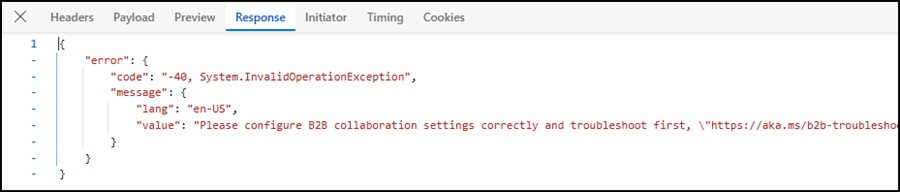
The browser logs reveal the cause, referencing the missing B2B collaboration setting.
Please configure B2B collaboration settings correctly and troubleshoot first. Error from Entra B2B: At least one invitation failed. Error: ResponseStatusNotOK, message: Guest invitations not allowed for your company. Contact your company administrator for more details.”
You must first create the guest account in Entra using either the Guest Inviter admin role, the Microsoft Graph API, or a third-party guest provisioning tool.
Just for addition:
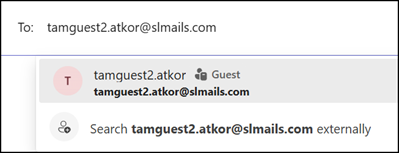
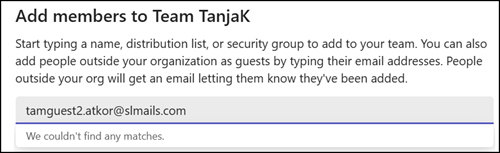
If you have strict external collaboration settings for B2B in Microsoft Entra External ID, this is not an isolated SharePoint situation. You already encountered the same situation in Teams: Chats with new guests are not possible,…

…and neither are team invitations.
Inviting guests and sharing a document with Microsoft Graph
I simulated this scenario using the Microsoft Graph driveItem invite endpoint. I used Graph because ShareLink via REST API consistently returned an error.
First, note this remark from the Graph documentation:
New guests can’t be invited using app-only access. Existing guests can be invited using app-only requests.
If you don’t invite the guest first, the system returns a vague but now known error.
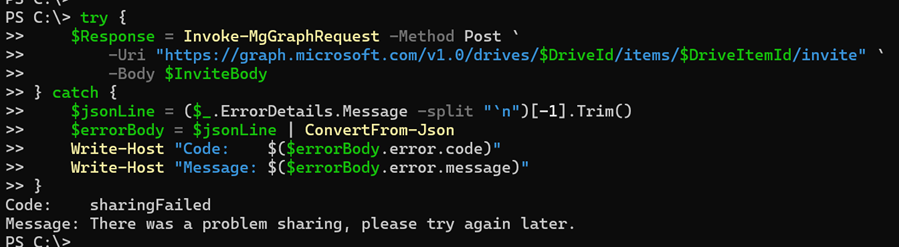
In my sample, I am sharing the same document with a guest who does not yet have a guest account.
My sample includes three steps:
- Check if the guest already exists in Entra ID. If not, invite the guest to Entra ID before sharing the item.
- Resolve the driveItem to get the drive ID and item ID.
- Share the item with the external user via Microsoft Graph.
# Find the sample in my GitHub Repo:
# https://github.com/TobiasAT/PowerShell/blob/main/Samples/SharePoint/Sample13-SharePointGuestSharing.ps1

# Insert the missing information
$GuestEmail  = "<GuestEmailAddress>"
$SiteUrl     = "<SharePointSiteURL>"
$SiteListID  = "<SharePointListID>"
$ListItemID  = <SharePointListItemID>

Connect-MgGraph -Scopes "User.Read, User.Invite.All, Files.ReadWrite"

$SiteUri      = [System.Uri]$SiteUrl
$Hostname     = $SiteUri.Host
$SitePath     = $SiteUri.AbsolutePath

# Step 1: Check if the guest already exists in Entra ID. If not, invite the guest to Entra ID before sharing the item.
# The guest UPN format is email_domain#EXT#@tenantdomain.onmicrosoft.com, encoding is required for the # and @ characters when used in the Graph API URL.

# Splitting the email to get the domain part for constructing the guest UPN, which is required for checking if the guest already exists in Entra ID.
$TenantDomain  = $Hostname.Split('.')[0]
$GuestUPN      = ($GuestEmail -replace '@', '_') + "#EXT#@$TenantDomain.onmicrosoft.com"
$GuestUPNEncoded = [Uri]::EscapeDataString($GuestUPN)   # encodes # as %23

try {
    $ExistingGuestAccount = Invoke-MgGraphRequest -Method Get -Uri "https://graph.microsoft.com/v1.0/users/$GuestUPNEncoded`?`$select=id,mail,userType"

} catch {

    Write-Host "Guest not found in Entra, creating B2B invitation"
    $B2BInvite = @{
        InvitedUserEmailAddress = $GuestEmail
        InviteRedirectUrl       = $SiteUrl # This is a mandatory property, but since we are not sending an invitation message, you can just put the site URL here or any other URL.
        SendInvitationMessage   = $false # Invitation message to the guest is not required, as the guest will get an email from SharePoint about the shared document.
    } | ConvertTo-Json

    $InviteResult = Invoke-MgGraphRequest -Method Post `
        -Uri "https://graph.microsoft.com/v1.0/invitations" `
        -Body $B2BInvite `
        -ContentType "application/json"

    Write-Host "Guest user ID has been invited: $($InviteResult.invitedUser.id)"
}
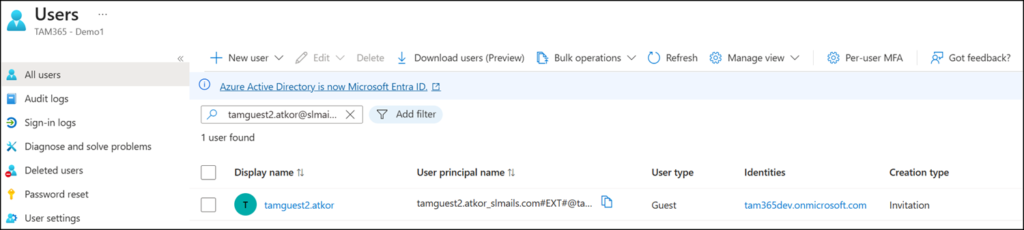
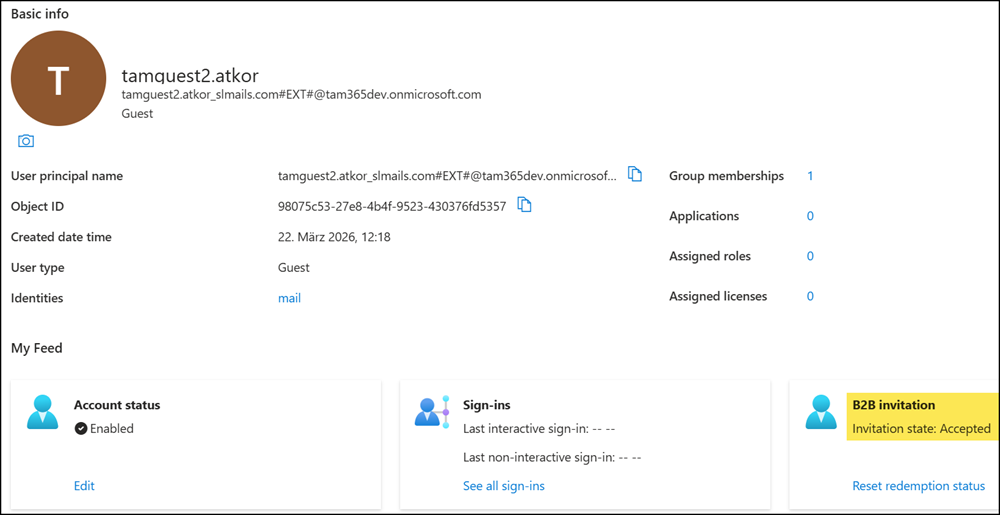
A validation confirms it: the guest account has been created in Entra.
Next, steps 2 and 3.
# Step 2: Resolve the driveItem to get the drive ID and item ID
$DriveItem   = Invoke-MgGraphRequest -Method Get -Uri "https://graph.microsoft.com/v1.0/sites/$($Hostname):$($SitePath):/lists/$($SiteListID)/items/$($ListItemID)/driveItem"

$DriveId     = $DriveItem.parentReference.driveId
$DriveItemId = $DriveItem.id

# Step 3: Share the item with the external user via Graph — roles: "read" or "write"
$InviteBody = @{
    requireSignIn  = $true
    sendInvitation = $true
    roles          = @("read")
    recipients     = @(
        @{ email = $GuestEmail }
    )
    message        = "I would like to share this item with you."
} | ConvertTo-Json -Depth 4

$Response = Invoke-MgGraphRequest -Method Post `
    -Uri "https://graph.microsoft.com/v1.0/drives/$DriveId/items/$DriveItemId/invite" `
    -Body $InviteBody

$Response.value | ConvertTo-Json
Item has been shared.
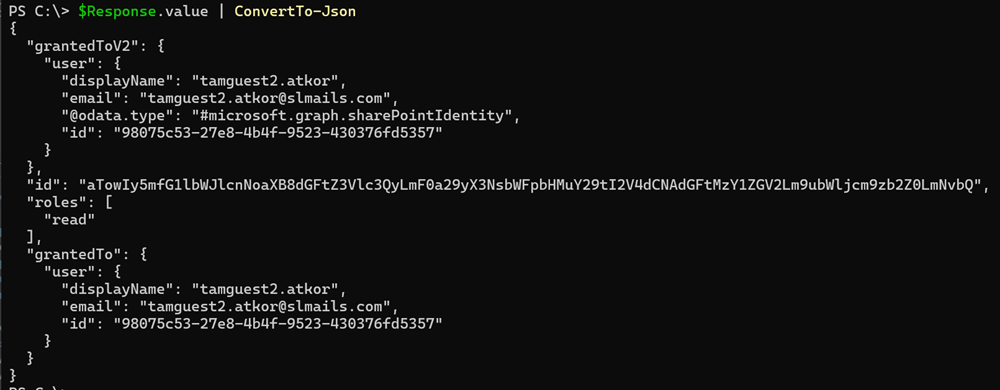
The guest received the invitation email.
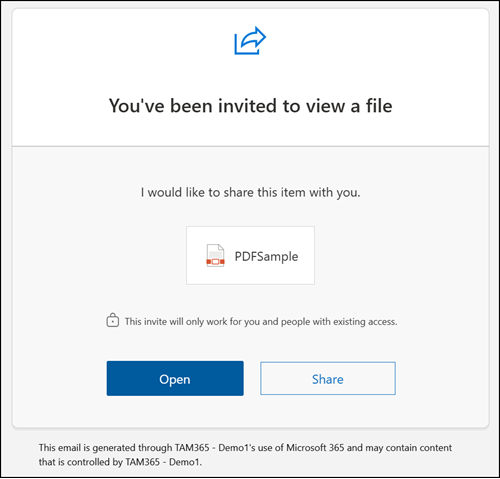
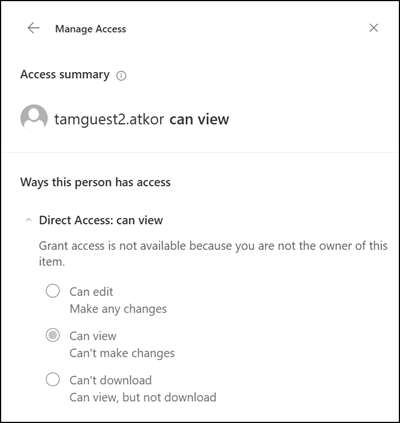
The guest has view-only permission on the file.
The guest account in Entra has accepted the invitation with access to the shared file.
And as expected, once the guest account exists in Entra, Teams chat and team invitations work as usual.