Data Risk Assessments in Microsoft Purview Data Security Posture Management (DSPM) now support item-level investigation and remediation for SharePoint and OneDrive files.
This update provides insights, such as sensitivity label status and sharing link details, to help identify overshared content and reduce exposure. After running a custom risk assessment, administrators with the required permissions can take direct remediation actions at the item level, including resolving findings, notifying owners, applying sensitivity labels, and removing sharing links.
It is currently undocumented which license is required, as the DSPM solution is still in Public Preview. Microsoft notes that Purview solutions are now a mix of per-user and Pay-as-you-go (PAYG) licensing. These custom data risk assessments do not require a PAYG setup (at least not yet) and are intended for SharePoint and compliance administrators.
In my simulation, I used a developer tenant with Microsoft 365 E5 licensing and no Purview PAYG setup.
Content
Timeline
The item-level investigation and remediation feature is now generally available.
Preparing a custom risk assessment
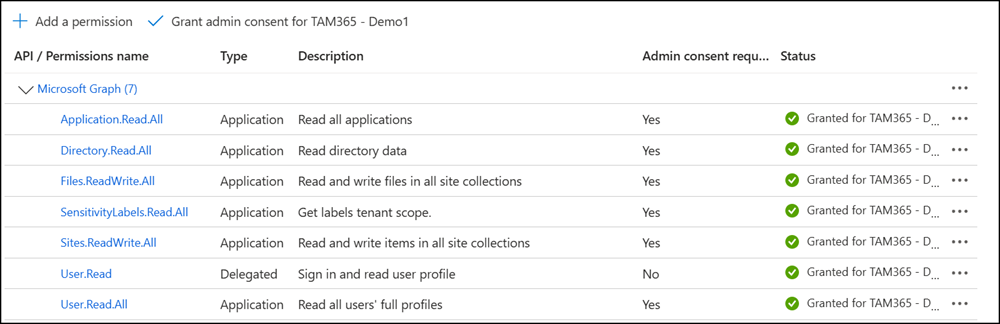
A custom risk assessment in DSPM is disabled by default and requires a preconfigured Azure app with the following permissions.
Microsoft APIs > Microsoft Graph > Application permissions:
- Application: Application.Read.All
- Directory: Directory.Read.All
- Files: Files.ReadWrite.All
- SensitivityLabels: SensitivityLabels.Read.All
- Sites: Sites.ReadWrite.All
- User: User.Read.All
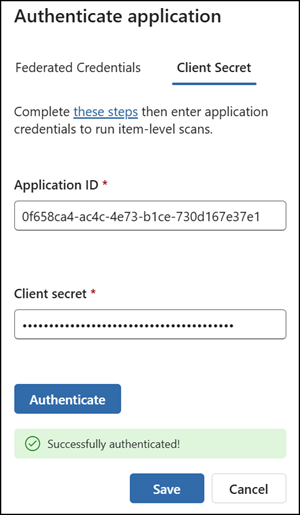
Complete the setup step in the DSPM portal, then start your first custom assessment.
Running a custom risk assessment
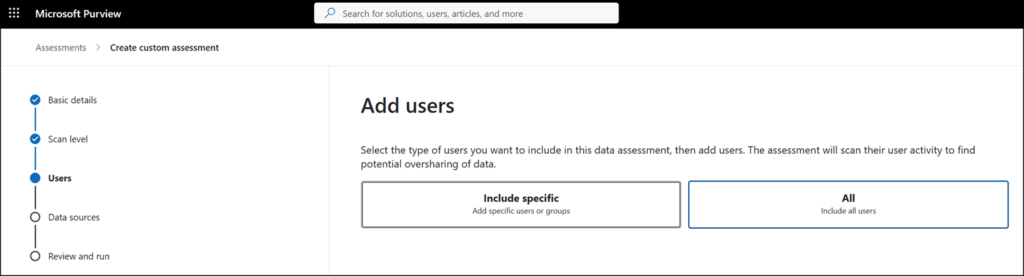
Open the Data Security Posture Management (DSPM) solution in Microsoft Purview and select Discover > Data risk assessments to start a new custom assessment.
Enable the option to perform an item-level scan, which is required to detect potential oversharing risks. Note the current limits for Microsoft 365.
- A maximum of 200,000 items per location, which applies to both a custom data risk assessment and a default data risk assessment. The count of files reported might not be accurate when there are more than 100,000 files per location.
- OneDrive currently isn’t supported for item-level scanning.
- A current maximum of 10 SharePoint sites for item-level scanning.
Just to add, I cannot confirm the unsupported OneDrive item-level scanning. OneDrive items were included in my simulation.
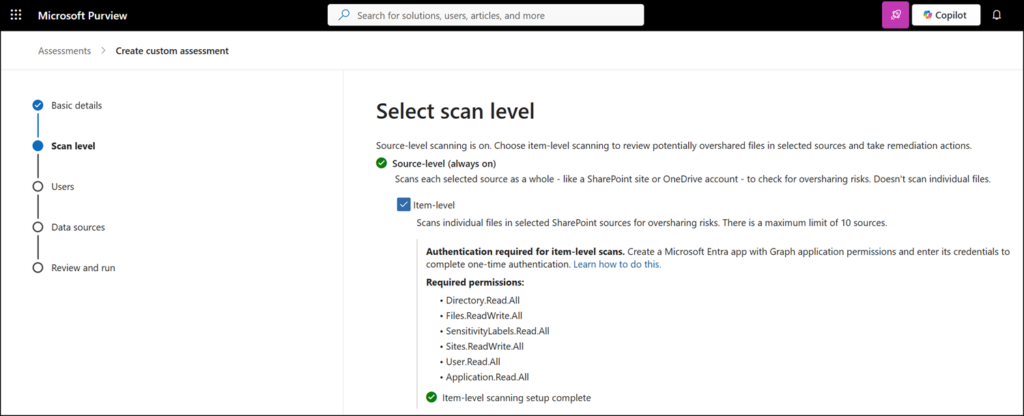
Select what to scan.
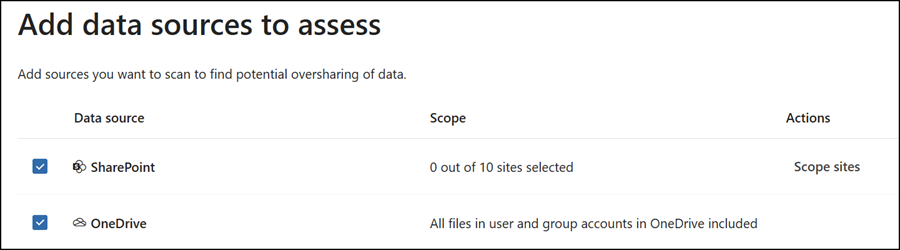
All OneDrive sites are included by default. Up to 10 SharePoint sites can be included, as mentioned above.
Review the details and start the assessment. It takes up to 48 hours to complete and remains available for 30 days. Use the duplicate option to rerun the assessment if needed.

Reviewing the risk assessment results
The assessment provides a general overview of the included sites, sources, sensitivity state, and results per site collection, including total items scanned, sensitivity state per item, and how the items are shared.
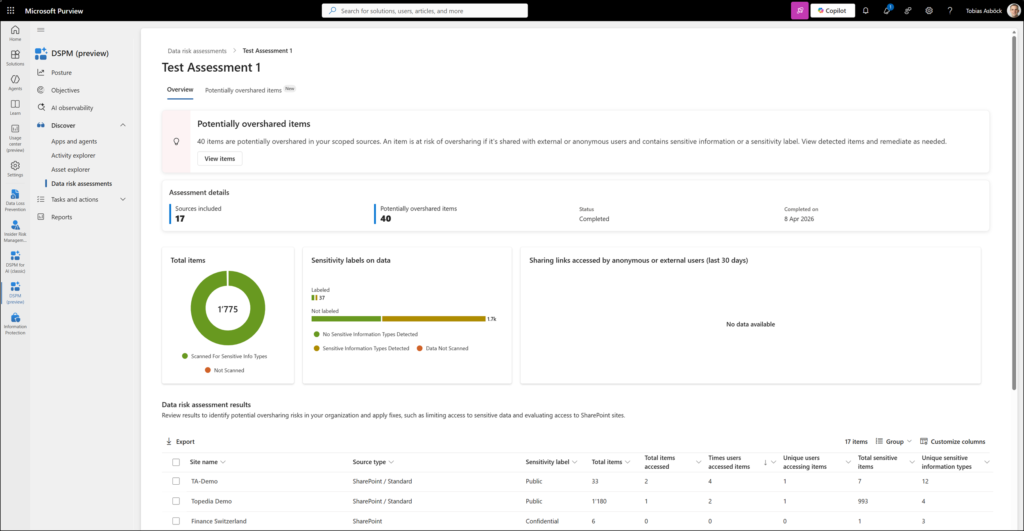
At one of my sites, the scan found 33 items containing 12 potentially sensitive information types.
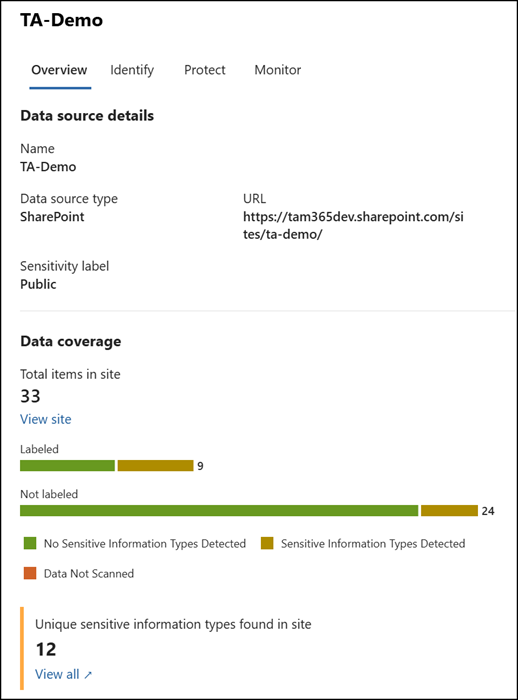
I was a bit surprised by some of the sensitive information findings, as I am not aware of having stored passwords or Philippine or Indonesian passport information on my test site. The Switzerland address finding is expected; the other information types are not actually stored there. It should also be noted that these classifiers have not been trained, as this is my developer tenant.
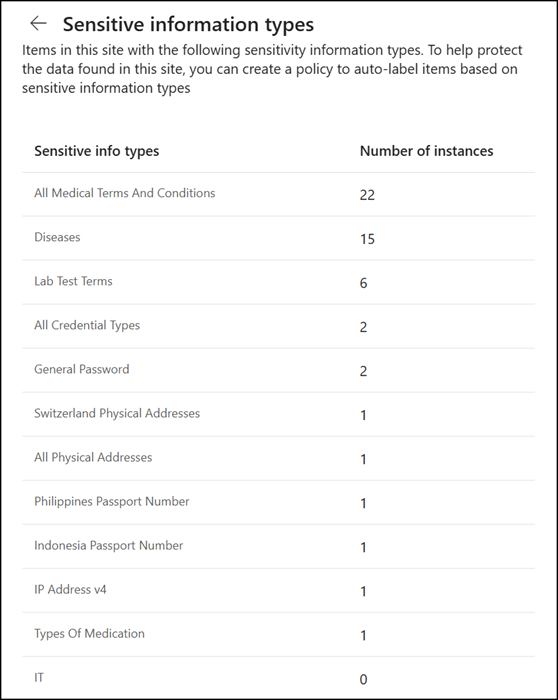
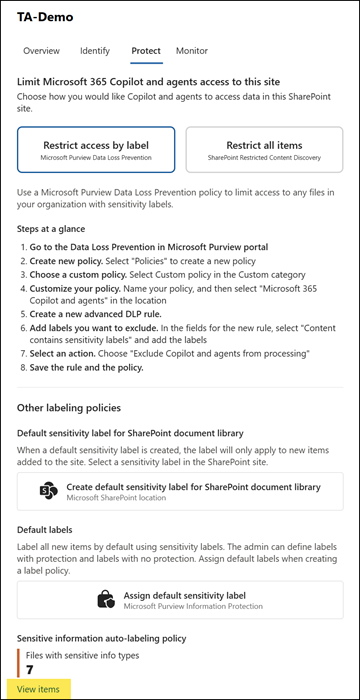
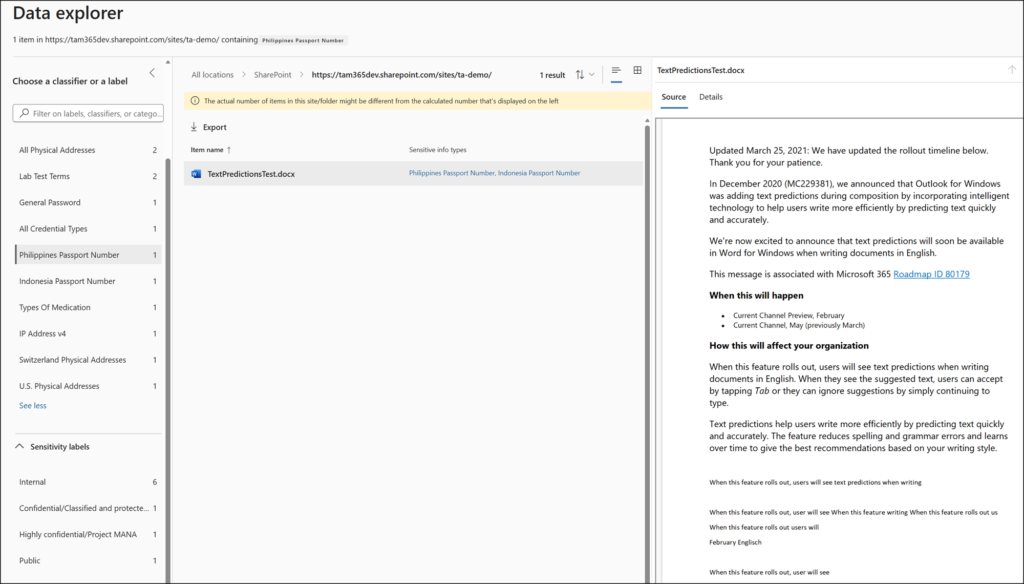
The report also allows you to review flagged items directly. Select the Protect tab, then choose “View items” to open a prefiltered Purview Content Explorer.
The Philippine and Indonesian passport number was identified in a Word file from a text prediction test some years ago. It appears the MC number was matched as that information type.
Reviewing potentially overshared items
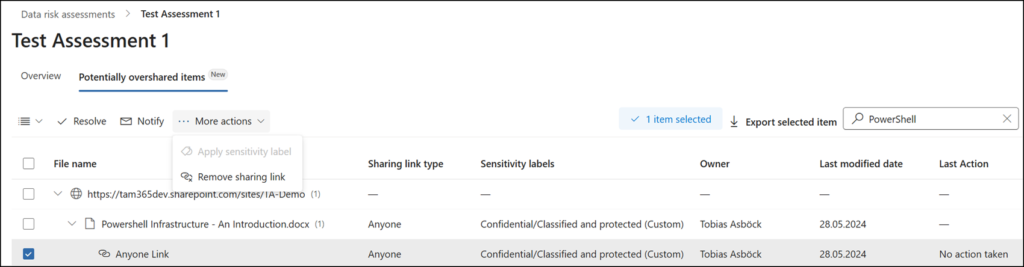
The risk assessment report also includes a “potentially overshared items” tab (now generally available) for reviewing flagged files and folders. The tab provides item-level remediation options to resolve findings, notify owners, apply sensitivity labels, and remove sharing links directly from the findings view.
First, get an overview of potentially overshared items and their remediation state.
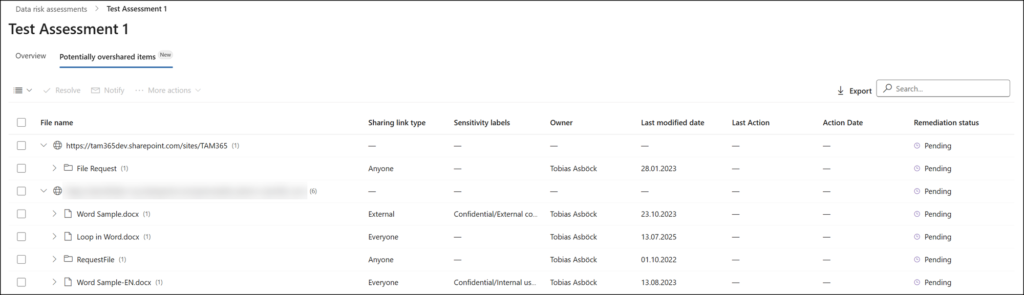
Second, select the file(s) and choose to resolve/accept the state, apply a sensitivity label if none has been applied, or remove the sharing link.