
Microsoft has released the Public Preview of file-level archiving in SharePoint. General availability is currently planned for July 2026.
Site members can now select individual supported files for archiving, rather than having to archive an entire site via a SharePoint administrator.
- File-level archiving is disabled by default during the Public Preview and can be enabled tenant-wide or per site collection.
- With general availability, file-level archiving will be enabled by default for all SharePoint sites if Microsoft 365 Archive is configured.
- Files stored in OneDrive are currently not supported for file-level archiving. The Archive option is not available.
Content
Opt-in to file-level archiving (preview)
When Microsoft 365 Archive is configured as a Pay-as-you-go service, SharePoint administrators have three options for managing file-level archiving.
- Enable file-level archiving tenant-wide for all SharePoint sites (AllowFileArchive in the SharePoint tenant). This setting will default to True with general availability.
- Enable file-level archiving for newly created SharePoint sites only, leaving existing sites unaffected (AllowFileArchiveOnNewSitesByDefault). The default value is True.

- Enable or disable file-level archiving for specific SharePoint sites (AllowFileArchive on site collections). This setting overrides the tenant-wide configuration. The ArchivedFileDiskUsed property reports the total storage consumed by archived files on the site.

Using file-level archiving
After opting into the Public Preview, all site members (users with Edit permissions) will find the new “Archive” option in the context menu for supported files.
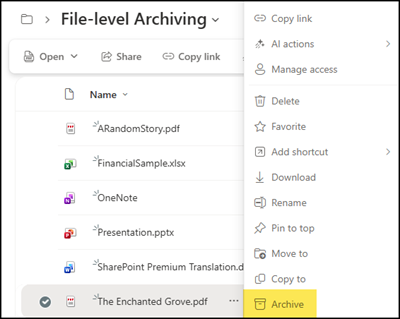
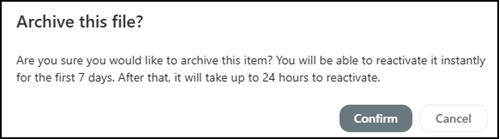
Confirming the prompt archives the file immediately.
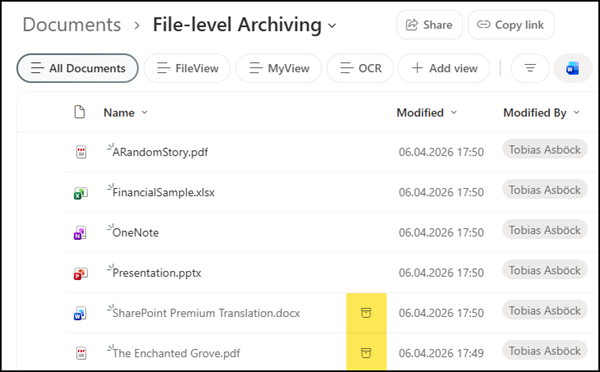
Archived files are marked with an archive symbol in the document library. When copied or moved, archived files retain their archived state. Moving archived files to OneDrive is limited.
File-level archive is available only for SharePoint sites. When archived files are copied or moved, they retain their archived state. However, if an archived file is moved or copied into OneDrive, that archived state might not always be visually represented in the OneDrive user interface.
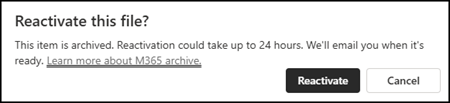
Users can reactivate files at any time.
- Files reactivated within the first 7 days are restored instantly.
- Files reactivated after the 7th day are restored within 24 hours.
- Reactivating an archived file is free of charge. Pricing for file-level archiving is pending, which is typical for features in Public Preview.
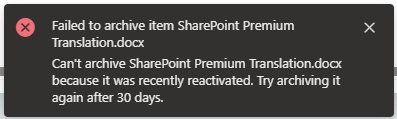
- Known limitation: Users must wait 30 days before a reactivated file can be archived again. This differs from the four-month period in site-level archiving. It’s a documented limitation for file-level archiving.
If a shared file is archived while someone accesses it via a sharing link, the link returns an error rather than indicating the file is archived. This behaviour is expected to be improved before general availability.
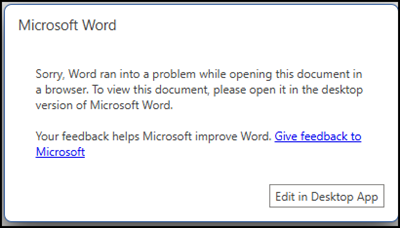
When attempting to open an archived file directly in SharePoint, users are prompted to reactivate it first. Archived files cannot be opened.
Using folder-level archiving
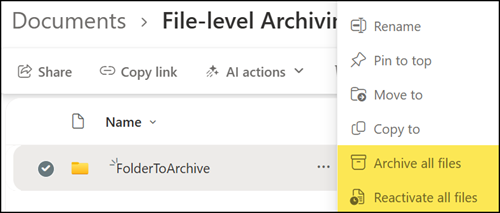
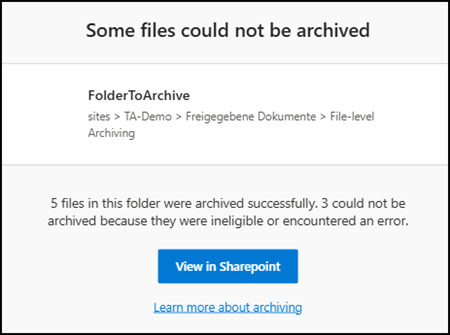
Site members can also archive a complete folder using the Archive all files option. These actions apply recursively to all files within the selected folder. Folders themselves don’t have an archived or active state.
A folder can contain a maximum of 20,000 items. The process can take a long time, depending on the number of files. In my test with 8 files, the process completed in around 60 minutes.
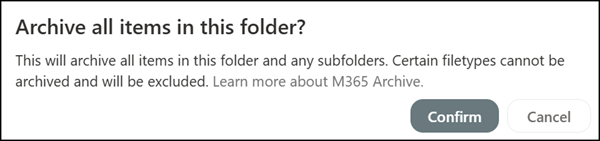
Confirming the prompt archives all files and subfolders within the folder.
Folder-level archiving creates a background task to archive all files and subfolders. A confirmation email is sent once the process is complete.
File-level archive storage and costs
Microsoft has extended the Microsoft 365 Archive FAQs with useful information on how file-level archiving affects storage costs. The key point is that SharePoint reclassifies storage rather than reducing it. Archived files still count toward the tenant’s total storage, but are moved from the active storage tier to the archived storage tier. Active storage usage decreases by the same amount as archived storage increases.
The practical benefit is cost, not capacity.
- Archived storage is charged at $0.05/GB/month, compared to $0.20/GB/month for active SharePoint storage.
- This only applies once a tenant exceeds its included storage quota. As long as active and archived storage combined stay within the licensed allocation, there are no additional charges.
- If Microsoft 365 Archive isn’t enabled, all content, whether archived or active, will be counted as active.
File-level archive search and filters
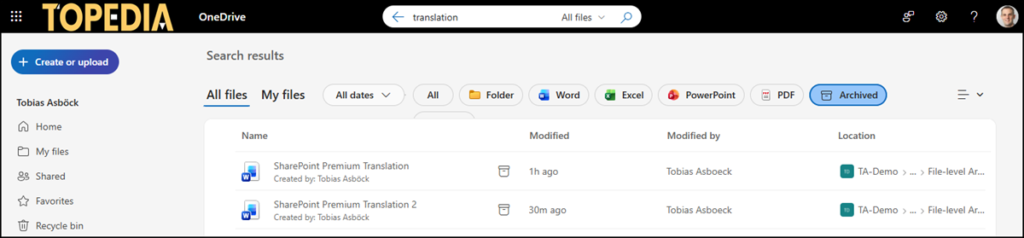
With file-level archiving in place, the OneDrive file search now includes a new Archive filter to list archived files.
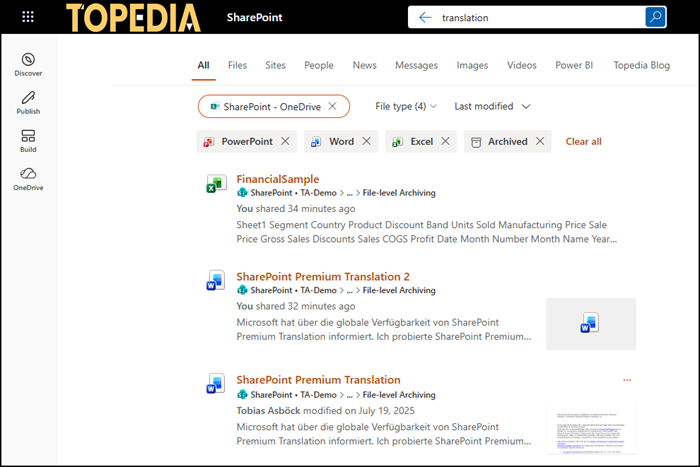
The same filter is also available in Microsoft 365 and SharePoint Search. Archived content isn’t used by Microsoft 365 Copilot.
Disabling file-level archiving
SharePoint administrators can disable file-level archiving at any time. When disabled, existing archived files can still be reactivated, but users cannot archive new files.
