
Microsoft is retiring SharePoint One‑Time Passcode (SharePoint OTP) authentication for external sharing in OneDrive and SharePoint beginning in July 2026.
This retirement should streamline external collaboration, unify identity under Microsoft Entra, and bring consistent guest lifecycle management and Conditional Access coverage across Microsoft 365.
In my post, I walk you through what SharePoint OTP looks like compared to Entra Email OTP, how to identify affected users, how to export a SharePoint OTP user report, and how to migrate them to Entra External ID.
Content
Timeline
- Starting May 2026
New external sharing invitations and authentication begin using Microsoft Entra B2B Collaboration. External users who previously authenticated via SharePoint OTP continue to access existing specific people links until retirement begins. - Starting July 2026
SharePoint OTP retirement begins. External users without an Entra B2B guest account receive an “access denied” error on previously shared specific people links until a guest account is created. - By 31 August 2026
Retirement should be completed. All external users without an Entra B2B guest account receive an “access denied” error on previously shared specific people links.
How does this affect your organization?
This retirement affects the SharePoint tenant setting EnableAzureADB2BIntegration. This setting will no longer control external sharing behavior.

This retirement can affect your SharePoint guest users if you are on an older tenant where EnableAzureADB2BIntegration was set to False and later switched to True.
In that case, your organization may have a mix of legacy SharePoint OTP users (without an Entra External ID guest account) and newer users with a B2B Collaboration guest account.
You should act immediately if the setting is still set to False!
***************
Updated 22 March 2026:
If you still have the setting configured as False, you should read my post about a potential upcoming error when using strict external collaboration settings in Microsoft Entra.
***************
I simulated two cases to demonstrate the differences between SharePoint OTP, Entra Email OTP, and the guest users.
I used two temporary email addresses for the simulation, created via SimpleLogin (which I can highly recommend if you want to use separate or temporary email addresses per service).
1) SharePoint OTP simulation
SharePoint OTP will be retired starting in July 2026. Guest users with SharePoint OTP will lose access to shared files.
I temporarily disabled the EnableAzureADB2BIntegration setting to use SharePoint OTP for my test user. My first test user is [email protected].
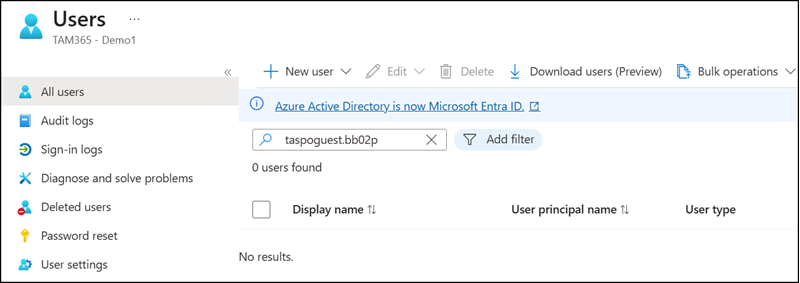
I shared a file with that user. Because EnableAzureADB2BIntegration was disabled, SharePoint did not create a guest account in Entra ID.
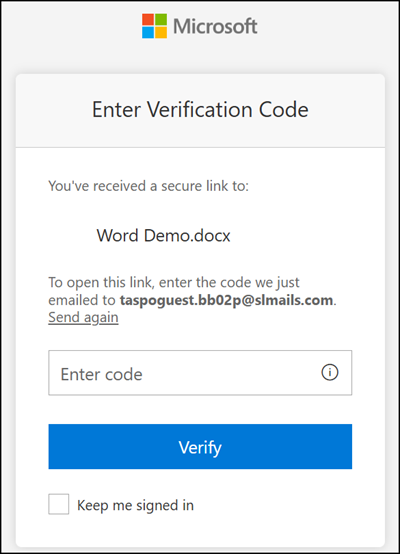
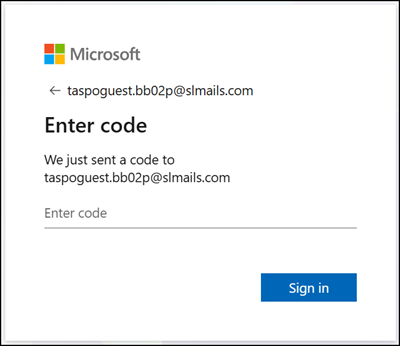
When a file or folder is shared with such a user, they see the SharePoint OTP prompt.
Checking the SharePoint User Hidden List with SharePoint Online PowerShell. You can identify these users by the login name format “urn:spo:guest#<Emailaddress>“.

Microsoft recommends two options to check:
- The email address in site sharing reports. This requires checking each site collection individually. Running a PowerShell script is faster; see my sample below.
- Using Purview Audit Logs. The Purview Audit Log can help identify recent logins for these accounts. You can report on the last 180 days, for example, to determine whether an account is still actively used.
Search for the operation EmailAuthOTPAuthenticationSucceeded in Purview Audit Logs to find actual logins from SharePoint OTP guests.
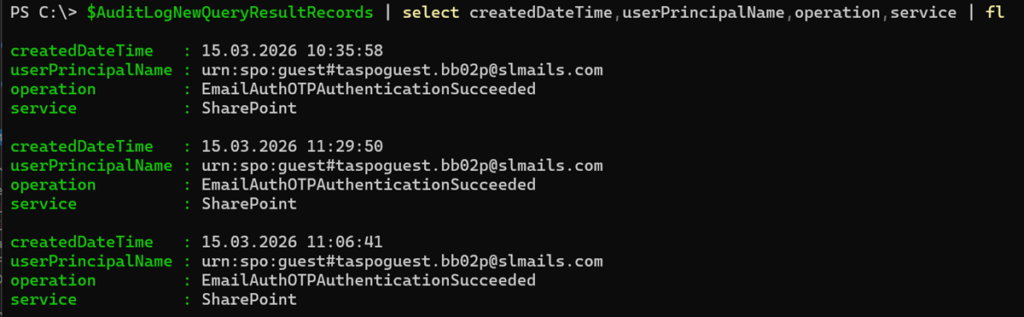
2) Email OTP simulation
Instead of SharePoint OTP, you should use Email OTP in Entra External ID.
I enabled the EnableAzureADB2BIntegration setting to activate Email OTP for my second test user. You should also verify that Email OTP is enabled in your tenant. My second test user is [email protected].
Again, I shared a file with the user. Because EnableAzureADB2BIntegration was enabled, SharePoint created a guest user in Entra.
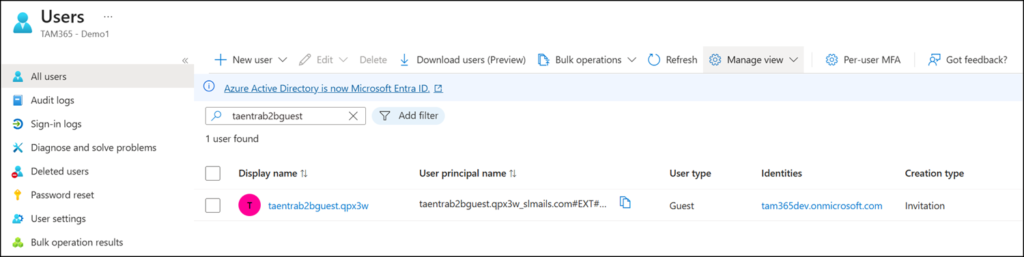
When a file or folder is shared with such a user, they see the Email OTP prompt provided via Entra External ID.
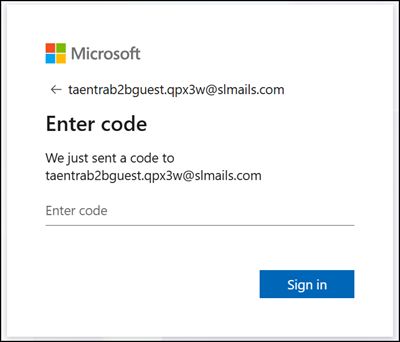
Checking the SharePoint User Hidden List reveals a clear difference. Entra External ID users appear in the format <Emailaddress>#ext#@<Tenant>.onmicrosoft.com.
In my simulation, I can find two Entra External ID users and two SharePoint OTP users.

There is an additional property to filter on.
Switching to PnP PowerShell to query the SharePoint API with the same filter exposes two properties: IsEmailAuthenticationGuestUser and IsShareByEmailGuestUser.
$Site = Get-PnPSite
$SiteUsers = Invoke-PnPSPRestMethod -Method Get -Url "$($Site.Url)/_api/web/siteusers"
$SiteUsers = $SiteUsers.value | Where-Object { $_.LoginName -like "*urn%3aspo%3aguest*" }
$SiteUsers | select LoginName,IsEmailAuthenticationGuestUser,IsShareByEmailGuestUser | sort LoginName | ft -AutoSize
The different values for IsEmailAuthenticationGuestUser are explained:
IsShareByEmailGuestUser
Claude AI
This property identifies whether a SharePoint user account was provisioned through the ad-hoc share-by-email flow. When someone shares a file or folder with an external email address that has no existing Microsoft or Entra ID identity, SharePoint creates a lightweight guest account and sets this flag to true. It is useful for governance and auditing scenarios where you need to identify accounts that bypassed the formal Entra ID B2B invitation process.
IsEmailAuthenticationGuestUser
This property indicates whether a user authenticated using the one-time passcode (OTP) email verification method rather than signing in with a Microsoft account or Entra ID identity. Users with this flag set to true have no persistent identity in your directory, making them particularly relevant from a security perspective. There is no MFA enforcement, no Conditional Access coverage in the traditional sense, and no account lifecycle to manage through standard Entra ID governance tooling.
You should now be able to identify SharePoint OTP users. I have prepared a PowerShell script to export these guest accounts.
Reporting SharePoint OTP users
You can generate a report of all SharePoint OTP users.
In my setup, I combine this with a Purview Audit Log query.
- Run a Purview Audit Log query to retrieve all EmailAuthOTPAuthenticationSucceeded activities from the last 180 days.
- Run a report across all site collections (including OneDrive) to find users with the property IsEmailAuthenticationGuestUser. Depending on the number of site collections in your tenant, this can take a while.
- Combine the login data from step 1 with the report from step 2, so you can identify which SharePoint OTP guests are still actively signing in.
Run a Purview Auditlog query
The audit log query collects logs from the last 180 days. Skip this step if you don’t need the information in your report.
Note, the sample waits for the query to complete, with a maximum wait time of 60 minutes.
# Find the sample in my GitHub Repo:
# https://github.com/TobiasAT/PowerShell/blob/main/Samples/Purview/Sample18-PurviewAuditLog-SharePointOTP.ps1

Import-Module Microsoft.Graph.Authentication
Connect-MgGraph -Scopes AuditLogsQuery-SharePoint.Read.All, AuditLogsQuery-OneDrive.Read.All


# Create a new Audit Log Query for SharePoint OTP authentication events in the last 180 days
$StartDate = (Get-Date).AddDays(-180).ToString("yyyy-MM-ddT00:00:00Z")
$EndDate = (Get-Date).ToString("yyyy-MM-ddTHH:mm:ssZ")

$Body =
@"
{
    "displayName": "MSGraphAuditlogQuery-SPOOTP",
    "filterStartDateTime": "$StartDate",
    "filterEndDateTime": "$EndDate",
    "serviceFilters": ["SharePoint"],
    "operationFilters": [
        "EmailAuthOTPAuthenticationSucceeded"
    ],
  }
"@

$Url = "https://graph.microsoft.com/beta/security/auditLog/queries"
$AuditLogNewQuery = Invoke-MgGraphRequest -Method POST -Uri $Url -Body $Body -ContentType "application/json"


# Poll the query status until it is completed, wait up to 60 minutes
$AuditLogNewQueryID = $AuditLogNewQuery.id
$QueryUrl = "https://graph.microsoft.com/beta/security/auditLog/queries/$AuditLogNewQueryID"

$QueryTimeoutMinutes = 60
$QueryPollIntervalSeconds = 60
$QueryStartTime = Get-Date

do {
    $Result = Invoke-MgGraphRequest -Method Get -Uri $QueryUrl -ContentType "application/json"

    Write-Host ("[{0}] Status: {1}" -f (Get-Date -Format "HH:mm:ss"), $Result.status)

    if ($Result.status -eq "succeeded") {
        Write-Host "Audit log query completed successfully."
        break
    }

    if ($Result.status -eq "failed") {
        throw "Audit log query failed. QueryId: $AuditLogNewQueryID"
    }

    Start-Sleep -Seconds $QueryPollIntervalSeconds

} while ((Get-Date) -lt $QueryStartTime.AddMinutes($QueryTimeoutMinutes))

if ($Result.status -ne "succeeded") {
    throw "Timeout reached. Audit log query did not complete within $QueryTimeoutMinutes minutes."
}


# Get the results of the search job (paging included)
$Url = "https://graph.microsoft.com/beta/security/auditLog/queries/$AuditLogNewQueryID/records?`$top=1000"
$AuditLogNewQueryResultRecords = @()

While ( $null -ne $Url ) {
    $data = Invoke-MgGraphRequest -Method GET -Uri $Url -ContentType "application/json"
    $AuditLogNewQueryResultRecords += $data.Value
    $Url = $data.'@Odata.NextLink'
}

# Output the results
$AuditLogNewQueryResultRecords | select createdDateTime,userPrincipalName,operation,service | flRun a SharePoint and OneDrive report
This report collects all guest users with the property IsEmailAuthenticationGuestUser across all SharePoint and OneDrive site collections. Depending on the number of site collections in your tenant, this can take a while.
Note:
You may also find internal users flagged as guests in SharePoint. These can be ignored if the account exists in Entra.
To make filtering easier, I added the columns UserEmailDomain and IsEntraAccount. I also included the SiteUserCreated information to return when the guest was first invited to the SharePoint site. In most cases, these users were created a long time ago.
I am using PnP PowerShell with an Azure app registration and the application permission SharePoint – AllSites.FullControl, as the script connects to site collections through the SharePoint API.
# Find the sample in my GitHub Repo:
# https://github.com/TobiasAT/PowerShell/blob/main/Samples/SharePoint/Sample12-SharePointOTPUsers.ps1

# Connect with an Azure App and Application Permissions AllSites.FullControl to get all SharePoint and OneDrive site collections
Connect-PnPOnline -Url "https://<Tenant>-admin.sharepoint.com" -ClientId <AzureAppID> -Thumbprint <Thumbprint> -Tenant <TenantID>

$AllSites = Get-PnPTenantSite -IncludeOneDriveSites

$AllSPOOTPUsers = @()
$Count = 1
foreach ($Site in $AllSites ) {
    Write-Host "$Count of $($AllSites.Count) - $($Site.Url)"

    # Get all site users with email authentication guest users (OTP)
    $AllOTPUsers = @()
    $NextUrl = "$($Site.Url)/_api/web/siteusers?`$filter=IsEmailAuthenticationGuestUser eq true&`$select=Id,Title,Email,LoginName,IsShareByEmailGuestUser,IsEmailAuthenticationGuestUser&`$top=1000"

    # In some cases, sites are no longer accessible (e.g. legacy sites such as SharePoint Public Site) and the REST call can fail, so I  wrap it in a try-catch to avoid the script breaking.
    try {
        do {
            $SiteUsers = Invoke-PnPSPRestMethod -Method Get -Url $NextUrl
            $AllOTPUsers += $SiteUsers.value
            $NextUrl = $SiteUsers.'@odata.nextLink'
        } while ($NextUrl)

    }
    catch {
        Write-Warning "Skipping $($Site.Url) - failed to get site users: $_"
        continue
    }

    if($AllOTPUsers.Count -gt 0) {

        # Get the User Information List for the site to retrieve additional user details (like created date) since the siteusers endpoint does not provide that information.
        $Url = "$($Site.Url)/_api/web/lists?`$filter=ListItemEntityTypeFullName eq 'SP.Data.UserInfoItem'&`$select=Id,Title"
        $UserInfoList = Invoke-PnPSPRestMethod -Method Get -Url $Url

        # Get all users from the User Information List with a non-null and non-empty EMail field (to exclude system groups or other objects) and retrieve their created date.
        $NextUrl = "$($Site.Url)/_api/web/lists(guid'$($UserInfoList.value.id)')/items?`$filter=EMail ne null and EMail ne ''&`$select=Id,EMail,Created&`$top=1000"
        $UserInfoListUsers = @()
        do {
            $data = Invoke-PnPSPRestMethod -Method Get -Url $NextUrl
            $UserInfoListUsers += $data.value
            $NextUrl = $data.'@odata.nextLink'
        } while ($NextUrl)

        foreach ($User in $AllOTPUsers) {
            $SPOOTPUser = New-Object -TypeName PSObject
            $SPOOTPUser | Add-Member -MemberType NoteProperty -Name SiteURL -Value  $Site.Url
            $SPOOTPUser | Add-Member -MemberType NoteProperty -Name SiteID -Value $Site.SiteId.Guid
            $SPOOTPUser | Add-Member -MemberType NoteProperty -Name SiteTitle -Value $Site.Title

            if($Site.Url -like "*my.sharepoint.com/personal*") {
                $SPOOTPUser | Add-Member -MemberType NoteProperty -Name SiteType -Value "OneDrive"
            } else {
                $SPOOTPUser | Add-Member -MemberType NoteProperty -Name SiteType -Value "SharePoint"
            }

            $SPOOTPUser | Add-Member -MemberType NoteProperty -Name SiteUserID -Value $User.Id


            $UserCreatedinUIL = $UserInfoListUsers | ?{ $_.Id -eq $User.Id }
            $SPOOTPUser | Add-Member -MemberType NoteProperty -Name SiteUserCreated -Value $UserCreatedinUIL.Created
            $UserLoginName = [System.Uri]::UnescapeDataString($User.LoginName)
            $SPOOTPUser | Add-Member -MemberType NoteProperty -Name UserLoginName -Value $UserLoginName
            $SPOOTPUser | Add-Member -MemberType NoteProperty -Name UserEmail -Value $User.Email
            $SPOOTPUser | Add-Member -MemberType NoteProperty -Name UserEmailDomain -Value ($User.Email -split '@')[1]
            $SPOOTPUser | Add-Member -MemberType NoteProperty -Name UserDisplayName -Value $User.Title
            $SPOOTPUser | Add-Member -MemberType NoteProperty -Name UserIsShareByEmailGuestUser -Value $User.IsShareByEmailGuestUser
            $SPOOTPUser | Add-Member -MemberType NoteProperty -Name UserIsEmailAuthenticationGuestUser -Value $User.IsEmailAuthenticationGuestUser

            # Check if the user has an Entra ID account (if the user profile can be retrieved via PnP PowerShell)
            try{  Get-PnPUserProfileProperty -Account $User.Email | Out-Null
                $SPOOTPUser | Add-Member -MemberType NoteProperty -Name IsEntraAccount -Value  $true
            }
            catch { $SPOOTPUser | Add-Member -MemberType NoteProperty -Name IsEntraAccount -Value  $false }

            # Get the last OTP login time for the user in the last 180 days from the Audit Log Query results
            $LastOTPTime = ($AuditLogNewQueryResultRecords | ? { $_.userPrincipalName -eq ($UserLoginName -split '\|')[-1] } | sort createdDateTime -Descending | select -First 1 ).createdDateTime
            if($LastOTPTime -ne $null) {
                $SPOOTPUser | Add-Member -MemberType NoteProperty -Name LastSPOOTPLogin180Days -Value (Get-Date $LastOTPTime).ToString("yyyy-MM-ddTHH:mm:ssZ")
            } else {
                $SPOOTPUser | Add-Member -MemberType NoteProperty -Name LastSPOOTPLogin180Days -Value $null
            }
            $AllSPOOTPUsers += $SPOOTPUser
        }
    }

    $Count++

}

# Export the results to a CSV file
$Date = Get-Date -Format "dd-MM-yyyy"
$ExportPath = ([Environment]::GetFolderPath('MyDocuments') + "\SPOOTPGuestUsers-$Date.csv")
$AllSPOOTPUsers | Export-Csv -Path $ExportPath -NoTypeInformation -Force
Write-Host "ExportPath: $ExportPath"
Disconnect-PnPOnline
The result is an export similar to this sample:

Converting SharePoint OTP users to Entra B2B guest accounts
As Microsoft describes in the FAQ documentation:
For external collaborators without a Microsoft Entra B2B guest account, you can proactively create the account in your directory to retain access to all previously shared files.
The transition is straightforward. If the guest still needs access, create a guest user account in Entra with the same email address. The guest must accept the invitation. The guest user syncs to the SharePoint User Profile service, which links the two accounts at the site collection level.
Once the guest has accepted the invitation, the SharePoint OTP prompt is replaced by the Entra Email OTP prompt.
Summary
All SharePoint OTP users without an Entra B2B guest account will lose access to shared content starting in July 2026.
The fix is simple: Create an Entra guest account for anyone who still needs access. Use my report to find affected users, optionally combined with an audit log query. Existing Entra B2B accounts are not affected.
More information from Microsoft:
- Workforce Tenant Overview – Microsoft Entra External ID | Microsoft Learn
- Email one-time passcode authentication – Microsoft Entra External ID | Microsoft Learn
- Frequently Asked Questions: Improvements to external sharing in OneDrive and SharePoint – SharePoint in Microsoft 365 | Microsoft Learn
- Microsoft Entra B2B integration for SharePoint & OneDrive – SharePoint in Microsoft 365 | Microsoft Learn

Hi Tobias
Thank you very much for your extensive work!
I do not fully understand why you mention that admins have to act immediately if the setting is still set to false?
Microsoft implements a transition phase if it’s still set to false. If admins act now and change EnableAzureADB2BIntegration to true, links won’t work anymore unless guest accounts are manually created or files reshared. With the transition phase of two months, I don’t see the need of creating guest accounts manually.
I refer to this part of MC1243549:
“External users without a B2B guest account:
– Specific people links shared after changes rolled out to your tenant:
— A guest account will be automatically created via the Entra B2B Invitation Manager.
— Authentication will use Entra B2B
– Specific people links shared before changes rolled out to your tenant:
— SPO OTP authentication continues until July 2026.
— After July 2026, these users will receive access denied until a matching B2B guest account exists.”
Thanks and regards
Sandro
Hello Sandro, thanks for the input.
When I mentioned “You should act immediately if the setting is still set to False,” I wanted to highlight that creating Entra guest accounts for all existing SPO guests is not a trivial task. The existing SharePoint OTP guests are currently missing from Entra ID, and as Microsoft stated:
“July 2026: Retirement of SPO OTP authentication begins. External users without a guest account get access denied on previously shared specific people links.”
I found such guests dating back to 2019 and earlier, since the EnableAzureADB2BIntegration setting was introduced later.
Given that timeline, the window to identify and remediate all affected guest accounts is shorter than it might appear, especially if EnableAzureADB2BIntegration is still set to False.
I see, thank you for your explanation 🙂