Recently, I read Intune now provides a report about the Secure Boot status for managed Windows devices.
As you probably have read, important Windows boot certificates will expire in June 2026. You should read the support pages provided by Microsoft to get all the details.
The impact of Secure Boot certificate expiration
Microsoft is updating the Secure Boot certificates originally issued in 2011 to ensure Windows devices continue to verify trusted boot software. These older certificates begin expiring in June 2026. Devices that haven’t received the newer 2023 certificates will continue to start and operate normally, and standard Windows updates will continue to install. However, these devices will no longer be able to receive new security protections for the early boot process, including updates to Windows Boot Manager, Secure Boot databases, revocation lists, or mitigations for newly discovered boot level vulnerabilities.
Over time, this limits the device’s protection against emerging threats and may affect scenarios that rely on Secure Boot trust, such as BitLocker hardening or third-party bootloaders. Most Windows devices will receive the updated certificates automatically, and many OEMs provide firmware updates when needed. Keeping your device current with these updates helps ensure it can continue receiving the full set of security protections that Secure Boot is designed to provide.
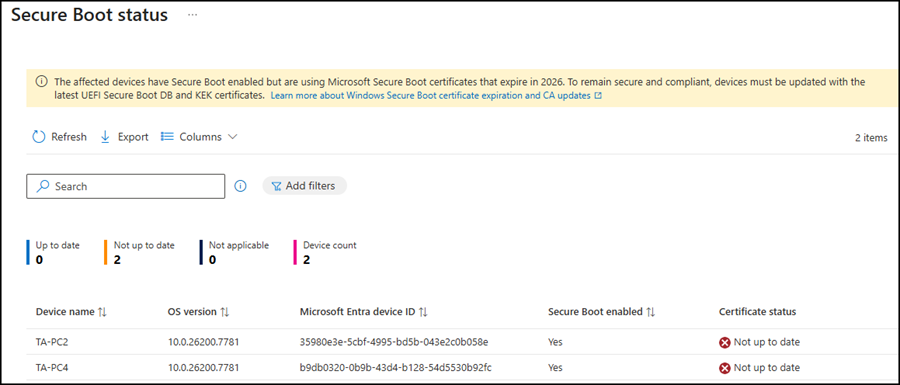
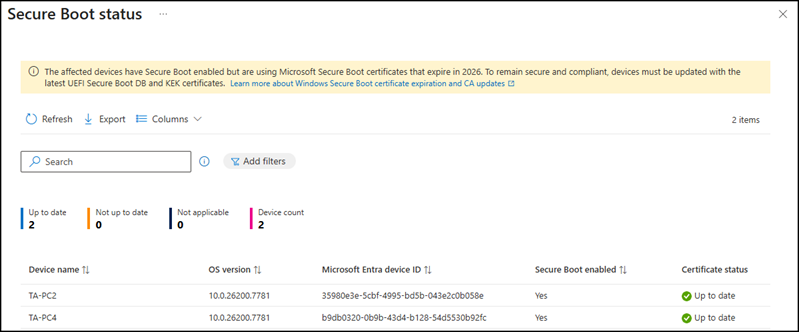
Microsoft now provides a Secure Boot status report in Intune.
Open Intune > Reports > Windows quality updates > Reports > Secure Boot status.
I checked the state of my two notebooks and got the result “Not up to date”.
I was not surprised by the first notebook, as it had been offline for a while.
First, I tried to deploy a configuration profile via Intune with “Enable Secureboot Certificate Updates“. However, the deployment failed.
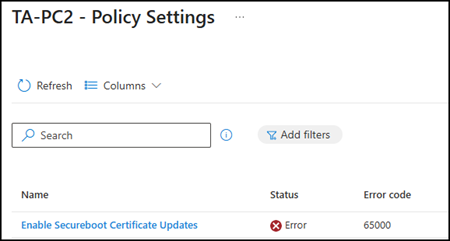
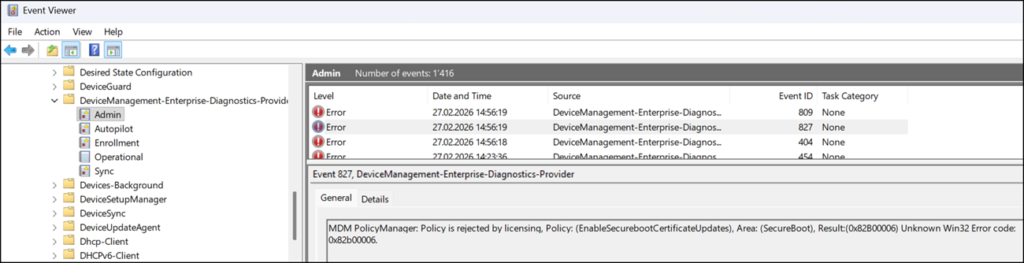
The error indicated a licensing problem. Microsoft also references this at the end of their documentation.
MDM PolicyManager: Policy is rejected by licensing, Policy: (EnableSecurebootCertificateUpdates)…
I then found a Reddit thread describing the same issue.
Both of my PCs were upgraded from Windows 11 Pro to Windows 11 Enterprise, which appears to have caused a legacy licensing issue that has not yet been resolved.
As others recommended, the workaround is to skip the Intune configuration profile and instead force the Secure Boot certificate update directly via registry key. This sets the same key that the “Enable Secureboot Certificate Updates” policy would configure. Microsoft documents this approach here with all configuration details.
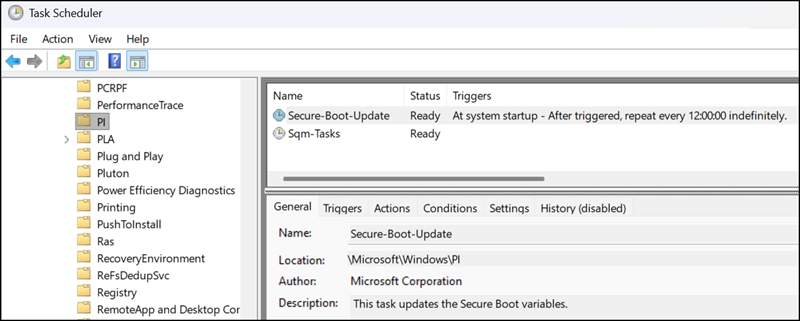
Following the recommendation, I set the registry key HKLM:\SYSTEM\CurrentControlSet\Control\SecureBoot – AvailableUpdates to 0x5944, then manually started the scheduled task to trigger the Secure Boot update. The task is located at: Task Scheduler > Microsoft\Windows\PI\Secure-Boot-Update.
The update failed with error ID 1802. Microsoft provides a list of known error IDs.
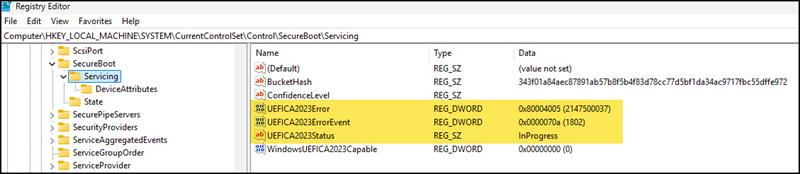
Error 1802 indicates an outdated BIOS.
The BIOS on my first PC was from 2023, so I updated it and repeated the steps. This time, I received error ID 1800, which means a reboot is required.
After rebooting and repeating the steps, the status changed to Updated. One additional reboot was needed to apply the updated certificates. My first PC now has the updated Secure Boot certificates.

The update on my second PC was much smoother, as it already had the latest BIOS version. The Secure Boot update status showed Updated after two reboots.
The Intune Secure Boot report reflected the updated state after a few hours.
For a final check, I asked Claude how to verify via PowerShell that the updated certificates are actually on the device.
Run the following commands in an admin-elevated PowerShell session:
foreach ($UEFIDb in @("db", "KEK")) {
    Write-Host "`n--- Secure Boot $UEFIDb ---"
    $Data = Get-SecureBootUEFI -Name $UEFIDb
    $Path = "$env:TEMP\SB_$UEFIDb.bin"
    [System.IO.File]::WriteAllBytes($Path, $Data.Bytes)
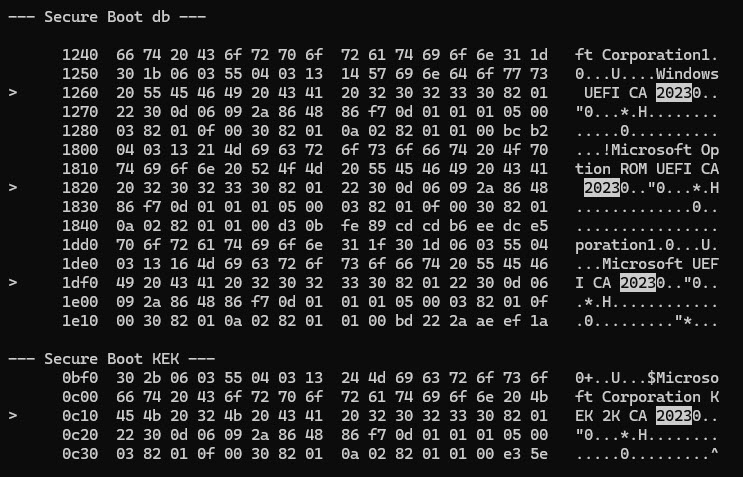
    certutil -dump $Path | Select-String "2023" -Context 2,2
}
All four Secure Boot certificates are present in the output. ✅
- Windows UEFI CA 2023
- Microsoft Option ROM UEFI CA 2023
- Microsoft UEFI CA 2023
- Microsoft Corporation KEK 2K CA 2023