A few days ago, I noticed several unknown 3rd-party sources in the Researcher agent.
Open the Researcher agent in Copilot Chat, select Sources, and scroll to the end. If your account is in Frontier mode, you should find seven 3rd-party connectors.
- Notion
- HubSpot
- Canva
- Linear
- GoogleContacts
- GoogleCalendar
- Intercom
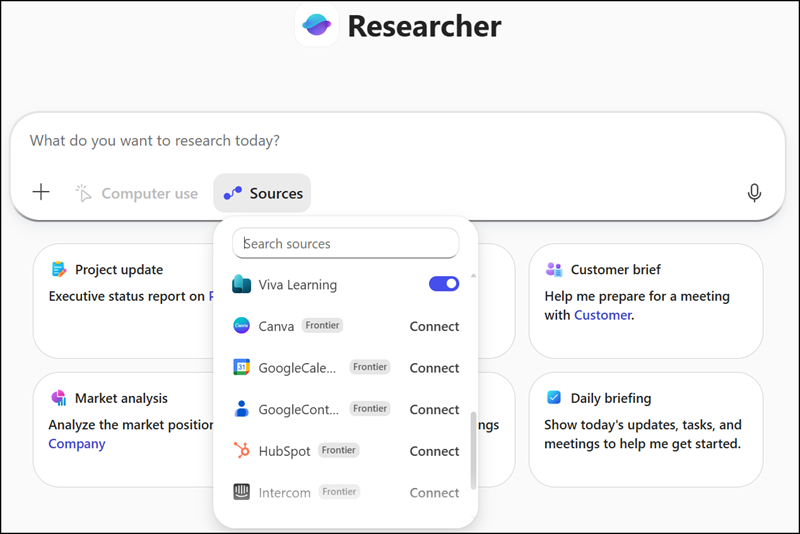
Select a service, and the system will guide you through the sign-in process with the 3rd-party vendor.
Microsoft describes these as federated Microsoft 365 Copilot connectors, which are currently in early access.
Microsoft 365 supports federated connectors, a new way to bring your organization’s data into Microsoft 365 without traditional indexing. Unlike synced Microsoft 365 Copilot connectors that crawl and index content into Microsoft Graph, federated connectors use a Model Context Protocol (MCP) to read content in real time. This capability allows organizations to connect live, dynamic data sources that can’t or shouldn’t be indexed, and make it discoverable through Copilot experiences.
There are two illogical points:
- These connectors are pre-enabled by Microsoft for users in Frontier mode.
- The configuration options in the Microsoft 365 admin center are not available if your tenant is in Standard Release mode. To manage these connectors, the tenant must be in Targeted Release mode.
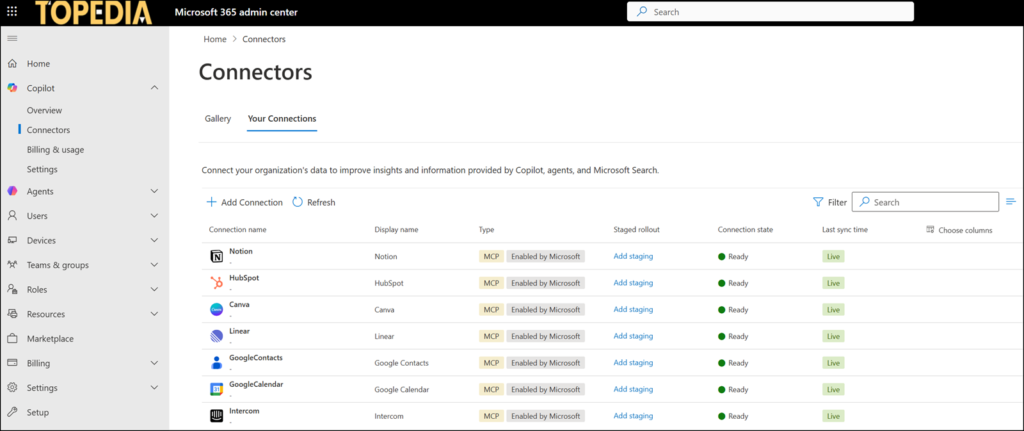
My personal tenant is in Targeted Release, but I do not have a Copilot license, and Frontier mode is disabled / not available. Still, I can find the seven connector settings in the Copilot Connectors admin page. There is also a note stating these connectors were enabled by Microsoft.
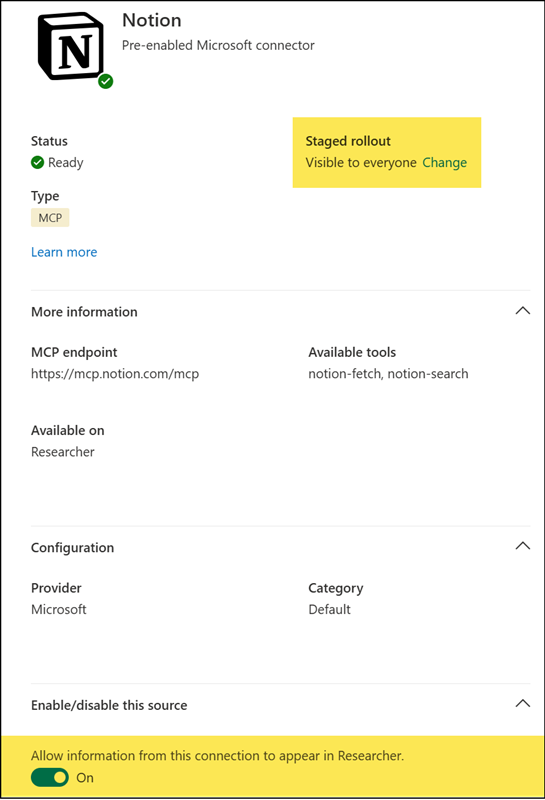
Users with the AI Administrator role can disable these connectors for the Researcher agent or restrict access to specific users or groups.
Unfortunately, this does not help if your tenant is in Standard Release. One option is to enable Targeted Release for a single AI Administrator account and wait until the settings become available. Alternatively, you can remove users from Frontier mode until the connector settings are accessible in Standard Release.