
Starting with Edge 145, Microsoft Edge now offers a policy to prevent users from installing new browser apps.
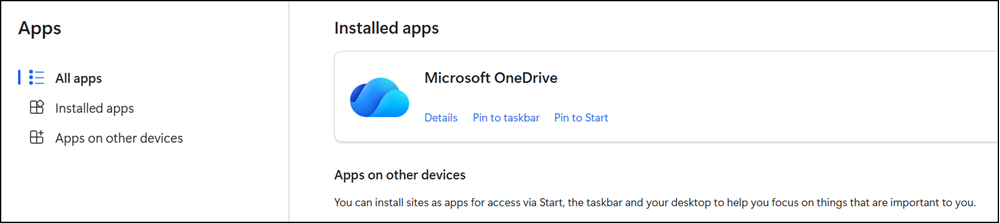
With Microsoft Edge, you can install and manage applications from your favorite websites onto your devices for fast access. Use the edge://apps page to view your installed applications and manage app permissions. You can sort installed applications by installation date, recently used, or alphabetically. Each app is presented as a card where you can view details and manage actions such as pinning, privacy controls, and uninstallation.
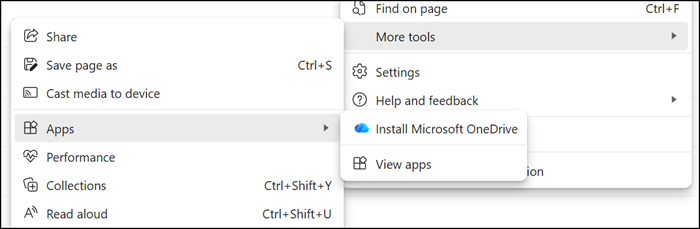
In my example below, OneDrive is being installed as a browser app.
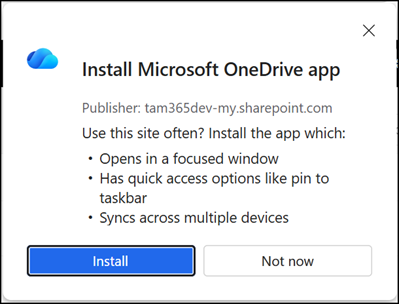
After confirming the installation:
The app is installed and listed among other browser apps.
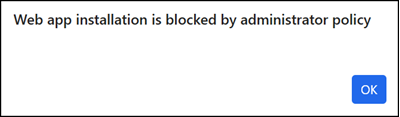
Edge administrators can now prevent these installations via the new WebAppInstallByUserEnabled policy.
WebAppInstallByUserEnabled
If you enable or don’t configure this policy, users can install web apps through the browser. If you disable this policy, users can’t install web apps through the browser, and the “apps” data type is excluded from synchronization. This policy doesn’t support dynamic refresh.
- This policy will remove the app installation option and all menu options for finding apps.
- This policy does not affect existing app installations. Previously installed apps continue to work but cannot be reinstalled (for example, when users switch devices or browsers). Users can uninstall existing apps.
- This policy does not affect the WebAppInstallForceList policy if your organization is pushing predefined app installations. Web apps defined in that list are installed regardless of the WebAppInstallByUserEnabled setting.
