Microsoft has rolled out Copilot Agents in OneDrive, a new capability that lets users ask questions, generate summaries, and extract key details across a project without reselecting content each time.
Like SharePoint agents, OneDrive agents are stored as .agent files in OneDrive and can be shared with internal colleagues to streamline collaboration.
Timeline
The rollout should be completed.
What is changing?
Users with a Microsoft 365 Copilot license can now create OneDrive agents. Select Create or upload in your OneDrive and choose the Agent option. The “Microsoft Copilot for SharePoint” service plan must be enabled in the Copilot license. This option is not available for users with a SharePoint Agent PAYG setup.
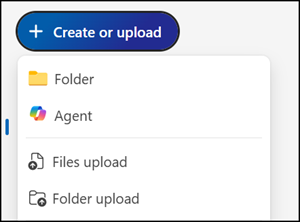
A Copilot assistant guides you through the setup. If you already know how to create SharePoint agents, the process will feel familiar. The OneDrive site is set as the default source, and you can add additional SharePoint sources if required.
Choose a name that is useful for other people, as this name is used when you share the agent. If you are using multiple OneDrive agents from different people, unclear naming quickly becomes confusing.
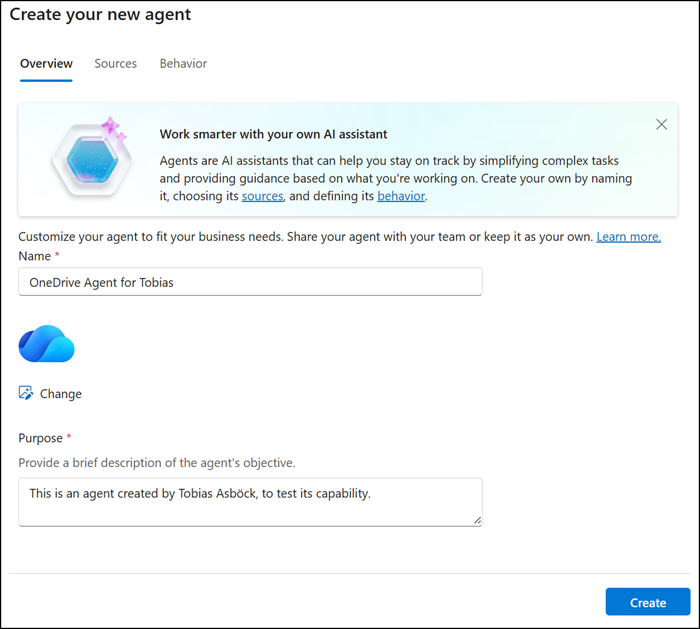
The agent is stored in OneDrive in the Documents/Agents folder. It is private (not shared) by default, but you can share it like any other file in OneDrive. The agent opens in Copilot Chat, where you can ask questions about your files. You can also pin the agent in Copilot Chat to keep it easily accessible at the top.
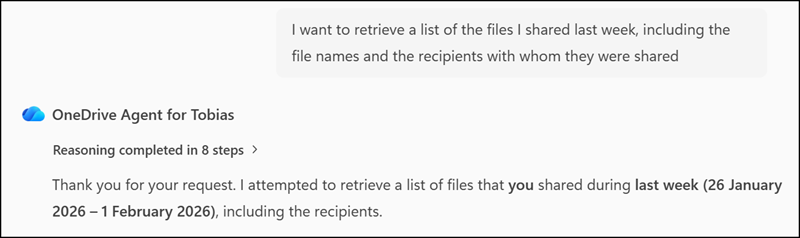
First example, querying shared files from last week.
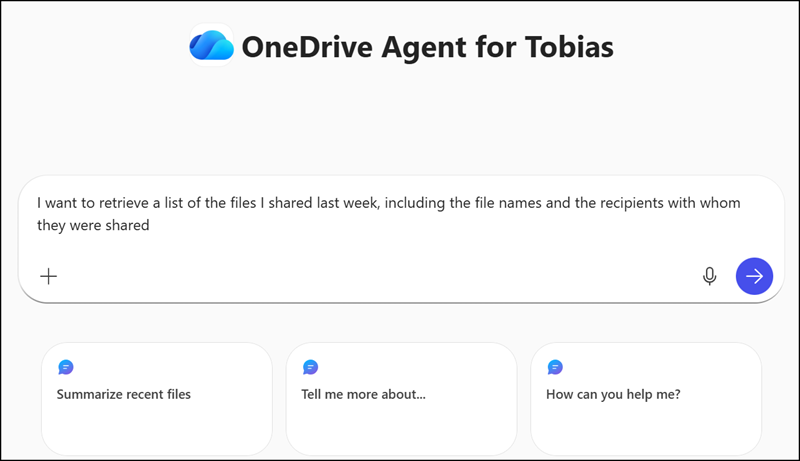
The agent prepares a list of files and recipients (shortened for privacy reasons).
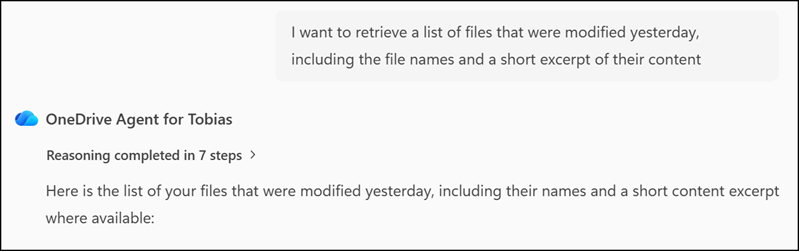
Next, ask the agent about recently modified files (shortened for privacy reasons).
You can also share your OneDrive agent with internal colleagues.
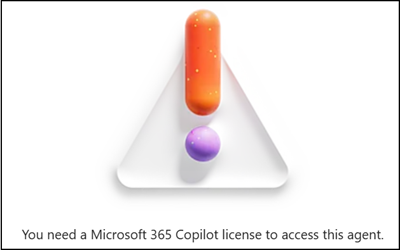
They can ask the agent about files shared with them from your OneDrive. The agent respects existing sharing permissions, so colleagues only see results for files and content they already have access to. A Microsoft 365 Copilot license is required for the colleague; otherwise, the system will notify them that the license is missing.