
Microsoft is rolling out a new capability that allows agents created in the Copilot Studio Lite experience (within Microsoft 365 Copilot Chat) to be copied into the full Copilot Studio experience. This gives authors access to advanced authoring features, broader publishing options, and enhanced governance controls.
Timeline
The rollout should be completed in January 2026.
How does this affect your organization?
Owners of a Copilot Studio Lite agent now find an option to copy their agent into Copilot Studio.
For example, with my demo agent from last October, open the More options (…) menu and select “Copy to Copilot Studio”.
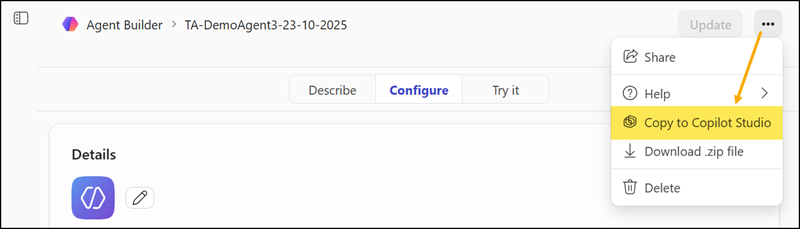
The original Lite agent in Microsoft 365 Copilot Chat remains unchanged and available after the copy.
When users copy an agent to Copilot Studio, a snapshot of its current state is created and stored once they save it. This copied version is fully independent, meaning later updates to the original agent are not reflected in the copy.
Each copy operation always creates a new, separate agent in Copilot Studio. If another copy operation is already running, users should wait a few seconds before starting a new one. While the original agent stays accessible in Microsoft 365 Chat, the copied agent can be managed in Copilot Studio and published to multiple channels.
Licensing:
Users need either a Microsoft 365 Copilot license with Copilot Studio enabled, a (free) Copilot Studio User license (only available if your organization has purchased at least one Copilot Studio Credits pack), or must be included in the Copilot Studio Authors configuration, as described last June.
Note:
A missing license will not hide the “Copy to Copilot Studio” option. Owners can start the copy process, but the system will redirect them to Copilot Studio with an access error if they do not meet the licensing requirements.
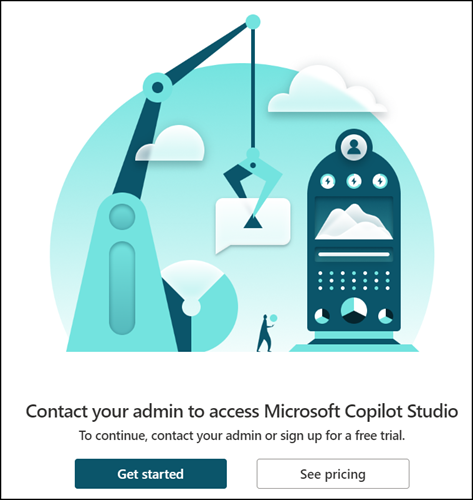
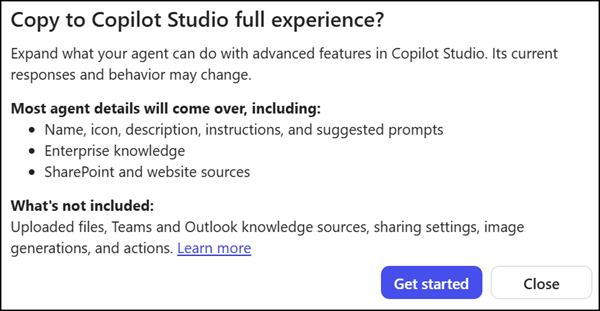
As Microsoft describes, the following agent configurations are copied to Copilot Studio:
- Static text fields for the agent’s definition
- Name
- Description
- Instructions
- Suggested prompts
- Agent icon
- SharePoint files, folders, and sites added as knowledge
- Websites added as knowledge
An assistant guides users through the copy process.
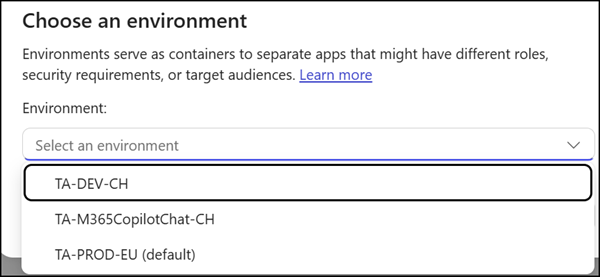
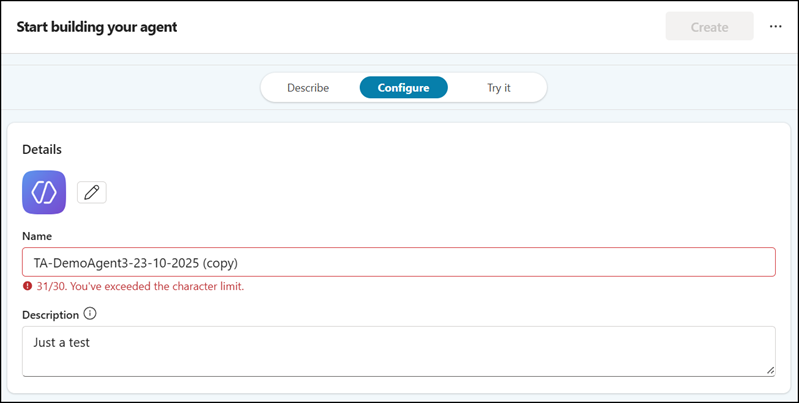
Users must select a Power Platform environment. An admin can restrict the copy process if users have limited permissions to Power Platform environments.
After the copy completes, users can start modifying the agent in Copilot Studio.
Users must create their agent. Until this step is completed, the new Copilot Studio agent is not actually created or saved.
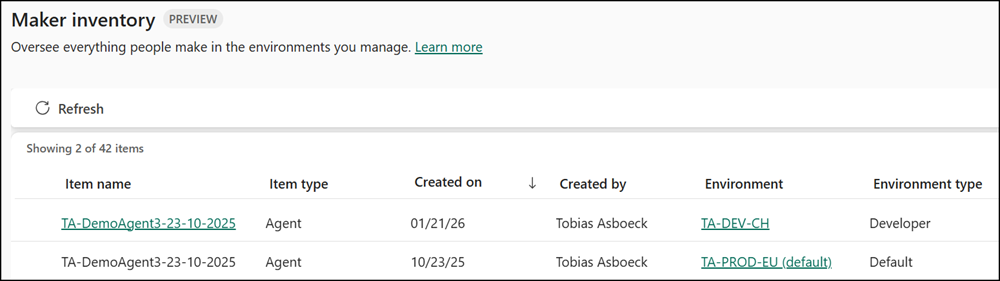
Power Platform admins now find both agents in the Power Platform Inventory, in my case with the same name. Underlined entries indicate Copilot Studio full agents. Selecting one of these (underlined) agents opens it in Copilot Studio.
If you need help collecting them with PowerShell, I’ve already described it.
