Microsoft is expanding People Skills’ AI-powered skill inferencing to include users with Microsoft 365 E3 and E5 licenses. Previously, this capability was limited to Microsoft 365 Copilot and Viva Premium users.
AI-powered skill inferencing uses signals from the Microsoft Graph to automatically identify and update skills on Microsoft 365 profile cards. This should improve people-based queries and analytics across Microsoft 365 and Copilot experiences.
- The tenant still needs at least one Microsoft 365 Copilot license to use AI skill inferencing features for Microsoft 365 E3/E5 licensed users.
- AI-powered skill inferencing is enabled by default. Admins can control AI skill inferencing features via Viva feature management policies.
Timeline
The rollout should be completed in February 2026.
How does this affect your users?
Soon, the following licenses will include the AI-powered skill inferencing feature:
- Microsoft 365 Copilot
- Microsoft Viva Suite
- Microsoft Viva Workplace Analytics and Employee Feedback
- Viva Insights (Premium)
- Viva Learning (Premium)
- NEW: Microsoft 365 E5 and E3
If users have a license that includes AI-powered skill inferencing and People Skills is enabled in your organization, the Microsoft 365 profile card can add and show skills evaluated by AI. The Skills section in the profile card will indicate an AI can automatically add skills.
Users can define skills manually if AI-powered skill inferencing is not included in the license; only the AI-powered skills feature is unavailable.
The People Skills inference engine uses Microsoft 365 profile and activity signals from the Microsoft Graph to create personalized skill profiles for users in your organization. Profile and activity signals include documents, emails, chats, and meetings.
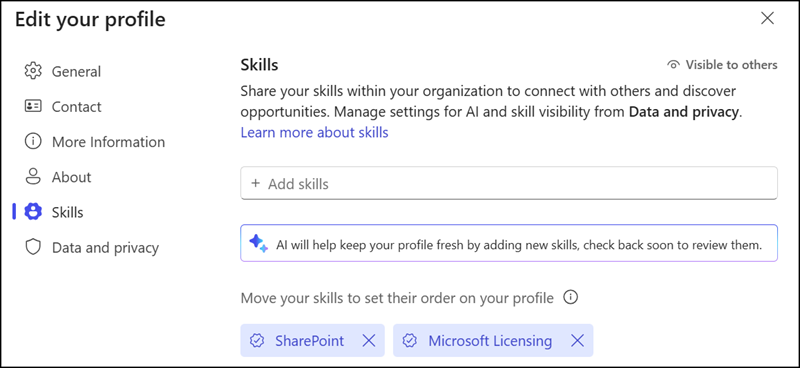
Skills added by AI are marked with an AI or no symbol. Manually defined skills are marked with a checkmark (confirmed skills). In my demo tenant, there is limited activity, so the system does not yet propose AI-generated skills.

Admins can also define AI-restricted skills. These skills are never added by AI and are removed from all profiles if they have already been applied. Users can still add these skills manually to their profile.
You should keep the People Skills inferencing refresh cycle in mind:
People Skills inferencing follows a refresh cycle, typically every 30 days, to ensure recent changes in a user’s Microsoft 365 work activity are reflected in their inferred skills.
For the initial computation, most users receive AI-generated skill inferences within 48 hours, although this can take up to five days. After the initial computation, the system refreshes skill inferencing every 30 days to keep the data up to date. The AI inferencing engine does not consider user activity older than 90 days.
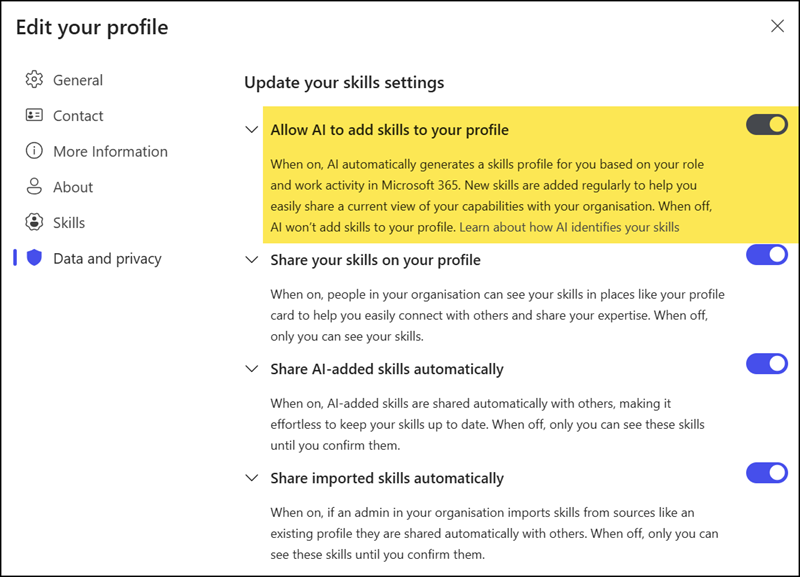
AI-powered skill inferencing is enabled by default for licensed users. Users can manually opt out of four skill-related settings. Administrators can change these settings so users must opt in manually or fully disable the feature, as described below.
How does this affect your administrators?
Users with the AI Administrator or Knowledge Administrator role can manage People Skills using Viva feature management policies in the Microsoft 365 admin center or via PowerShell.
Microsoft provides a detailed People Skills privacy page describing what can be configured and in which mode:
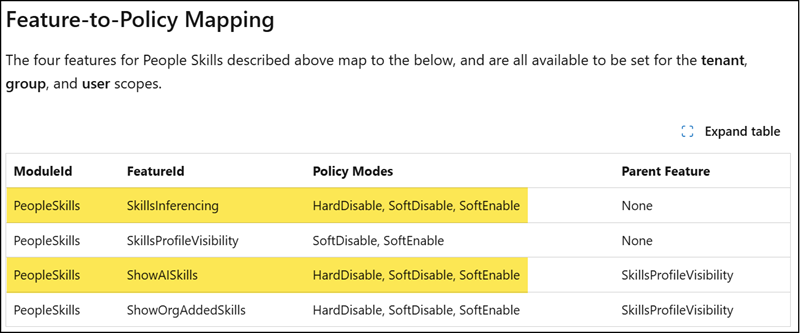
- SoftEnable: Feature is available and enabled by default; users can opt out. This is the default mode for most People Skills settings.
- SoftDisable: Feature is available but disabled by default; users can opt in.
- HardDisable: Feature is fully disabled; users cannot opt in or out.
In my sample, I am accessing the Viva feature management policies via the Exchange PowerShell module.
Below is an excerpt showing the settings for the SkillsInferencing and ShowAISkills feature. You should notice both features.
SkillsInferencing
Determines whether AI can infer Skills for users and add them to their M365 profiles on their behalf.
ShowAISkills
Controls whether AI-Inferred Skills are shown on the user’s M365 Profile Card or shared with other M365 applications.
Connect-ExchangeOnline
Get-VivaModuleFeature -ModuleId PeopleSkills -FeatureId SkillsInferencing
Get-VivaModuleFeature -ModuleId PeopleSkills -FeatureId ShowAISkills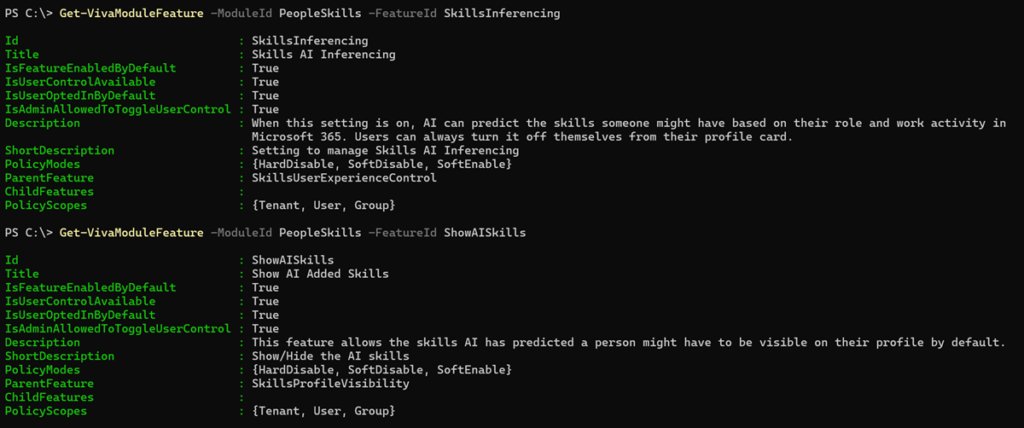
As shown in the screenshot, all default settings are set to True.
Microsoft notes, administrators can configure all three policy modes for both features. SoftEnable is the default mode.