
Microsoft is extending the AI disclaimer experience in Copilot Chat for desktop and web. This update introduces a new admin control that allows organizations to customize how the disclaimer is displayed, including an option to increase visibility and add a custom link to internal AI policy documentation.
Timeline
The rollout should be completed in January 2026.
How does this affect your organization?
Currently, Copilot Chat displays a small AI disclaimer in all chats.
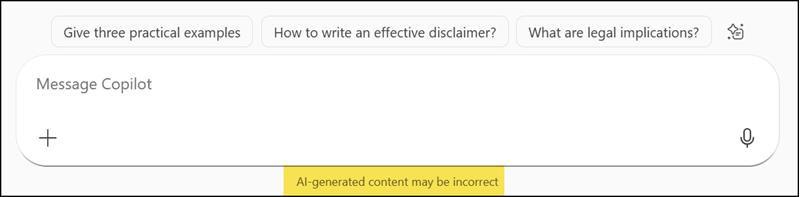
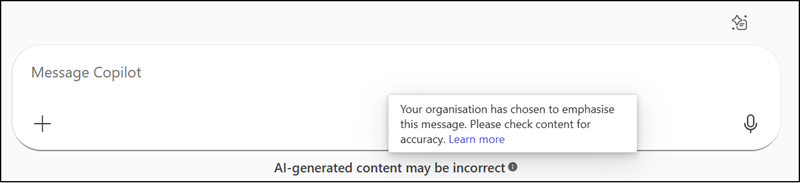
After the update, admins can extend the disclaimer by adding an organization-defined link. The default disclaimer is enhanced to direct users to internal AI policies and guidance, thereby improving awareness and understanding of AI use within the organization.
Cloud Policy for AI disclaimer
Admins can find the new cloud policy “Copilot AI Disclaimer” in the Office Cloud Policy service. Changes to the policy can take up to 8 hours to become effective.
This policy controls whether the Copilot disclaimer “AI results may be inaccurate” is displayed to the user, toggling between (a) not displayed and (b) AI disclaimer displayed in bold text with an added tooltip and optional link to your organization’s AI use policy.
- If you enable this policy setting, users will see the Copilot disclaimer displayed in bold text with an added tooltip and optional link to your organization’s AI use policy.
- If you disable or don’t configure this policy setting, users will not see the AI disclaimer “AI results may be inaccurate” displayed and no tooltip will be available and no ability to link to your organization’s AI use policy.
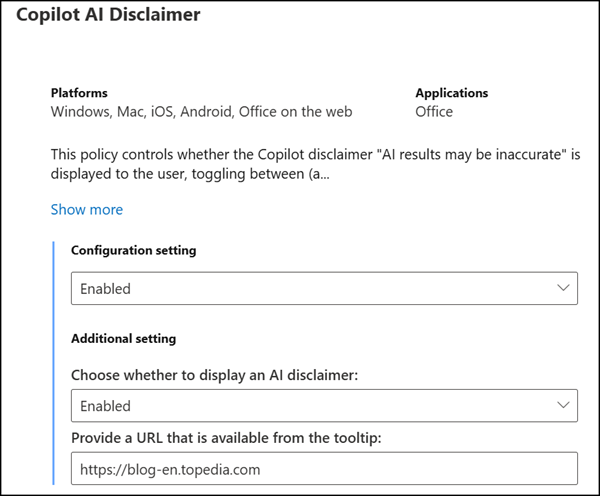
Based on my testing, the policy description for “If you disable or don’t configure this policy setting” appears to be inaccurate, or Microsoft may have forgotten to apply the corresponding configuration. The disclaimer is not hidden, even after waiting several days. I don’t think it’s intended to completely remove the disclaimer. Disabling the policy or setting it to “Not configured” has the same result: the disclaimer remains visible in the default format.
