Microsoft is introducing Baseline Security Mode for Office products, SharePoint, Exchange, Teams, and Entra.
The Baseline Security Mode provides a centralized experience that aligns tenants with Microsoft-recommended security standards and is available in the Microsoft 365 admin center. This new capability is designed to strengthen your organisation’s security posture and should help to prepare for evolving, AI-driven threats.
Content
Timeline
The rollout should be completed between January and March 2026.
Impact on your organisation
New Baseline Security Mode dashboard
Microsoft provides a new Baseline Security Mode dashboard in the Microsoft 365 admin center. The dashboard compares your tenant’s security posture against 18 Microsoft-recommended settings. All recommendations are documented here, including references to additional technical documentation.
The recommendations are categorised across Authentication, Files, and Room devices, and grouped by risk level, with statuses such as At risk or Meets standards. The dashboard also provides an overall rating that shows how your tenant currently aligns with the 18 recommendations.
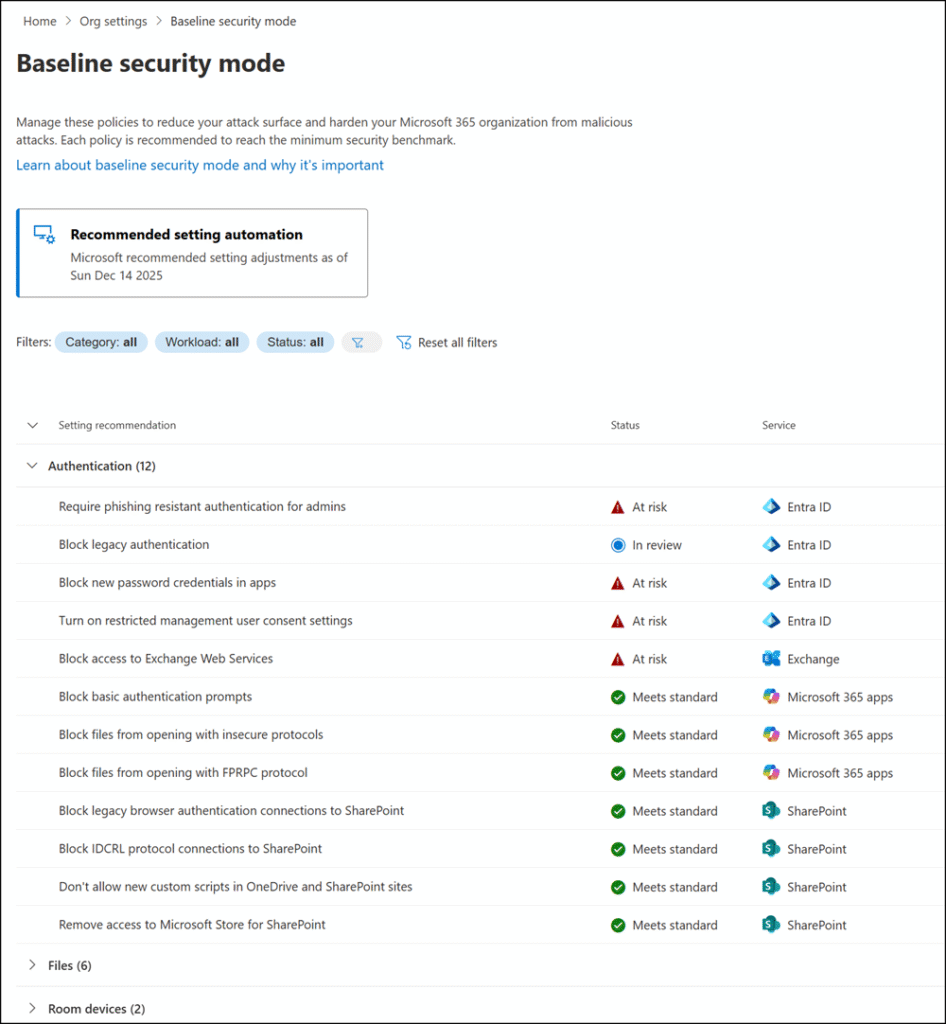
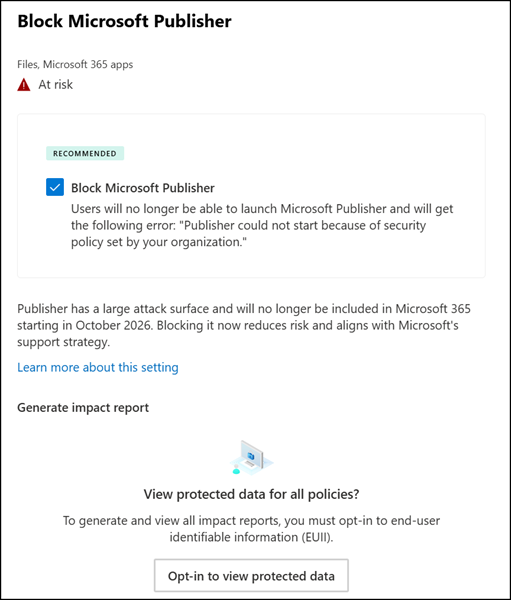
You can open each recommendation to review detailed information, preview the potential impact on users or apps, exclude specific objects, and remediate the issue immediately. For example, one recommendation suggests blocking Microsoft Publisher.
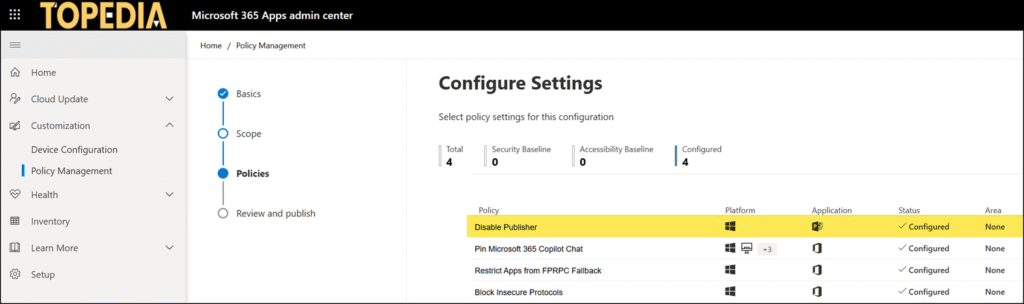
If you implement this recommendation, the system will update your All users policy in the Microsoft 365 Apps admin center by adding the Disable Publisher policy. This configuration is part of the Office Cloud Policy service.
You can also configure all recommendations manually to meet the standard baseline. Configuration changes may take up to 24 hours to be updated in the baseline recommendation, especially for SharePoint-related settings.
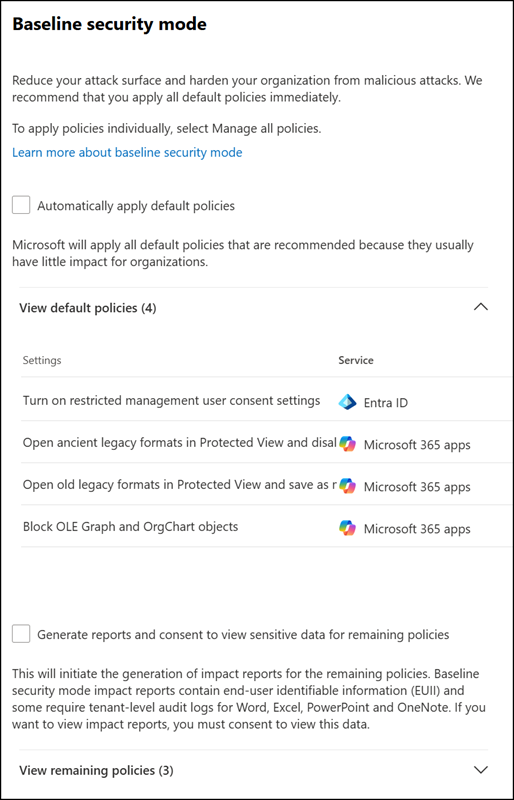
Automatically apply predefined default policies
A new setting is also available under Microsoft 365 admin center > Org settings > Security & privacy > Baseline security mode. This setting allows administrators to automatically apply four predefined default settings or enable audit reporting for additional policies.
Use caution when enabling this setting. It currently applies four predefined settings, but Microsoft may add additional settings in the future that could be applied automatically without being immediately obvious.
- Turn on restricted management user consent settings
- Open ancient legacy formats in Protected View and disallow editing
- Open old legacy formats in Protected View and save as modern format
- Block OLE Graph and OrgChart objects